# Notion
> [!WARNING]+ This integration is currently in beta
>
> This integration has not yet reached a stable release. It's functional for
> testing and evaluation but should not be relied upon for production use cases.
>
> See the [current limitations](#current-limitations) section below for current
> known issues and planned improvements.
The **Notion integration** enables backup and restoration of Notion workspaces
through the official Notion API. All workspace content—including pages,
databases, blocks, and hierarchical relationships—is captured as structured JSON
and stored in a Kloset store.
The Notion integration provides two connectors:
| Connector type | Description |
| ------------------------- | ----------------------------------------------- |
| **Source connector** | Back up a Notion workspace into a Kloset store. |
| **Destination connector** | Restore a Notion workspace from a Kloset store. |
## Installation
The Notion package can be installed using pre-built binaries or compiled from
source.
{{< tabs >}}
{{< tab label="Pre-built package" >}}
Pre-compiled packages are available for common platforms and provide the
simplest installation method.
> [!NOTE]+ Logging In
>
> Pre-built packages require Plakar authentication. See
> [Logging in to Plakar](../../guides/logging-in-to-plakar) for details.
Install the Notion package:
```bash
$ plakar pkg add notion
```
Verify installation:
```bash
$ plakar pkg list
```
{{< /tab >}}
{{< tab label="Building from source" >}}
Source builds are useful when pre-built packages are unavailable or when
customization is required.
**Prerequisites:**
- Go toolchain compatible with your **Plakar** version
Build the package:
```bash
$ plakar pkg build notion
```
A package archive will be created in the current directory (e.g.,
`notion_v1.0.0_darwin_arm64.ptar`).
Install the package:
```bash
$ plakar pkg add ./notion_v1.0.0_darwin_arm64.ptar
```
Verify installation:
```bash
$ plakar pkg list
```
{{< /tab >}}
{{< /tabs >}}
To list, upgrade, or remove the package, see
[managing packages guide](../../guides/managing-packages/).
## Notion API Setup
Before using the Plakar Notion integration, you must create an internal
integration in your Notion workspace.
### Create a Notion integration
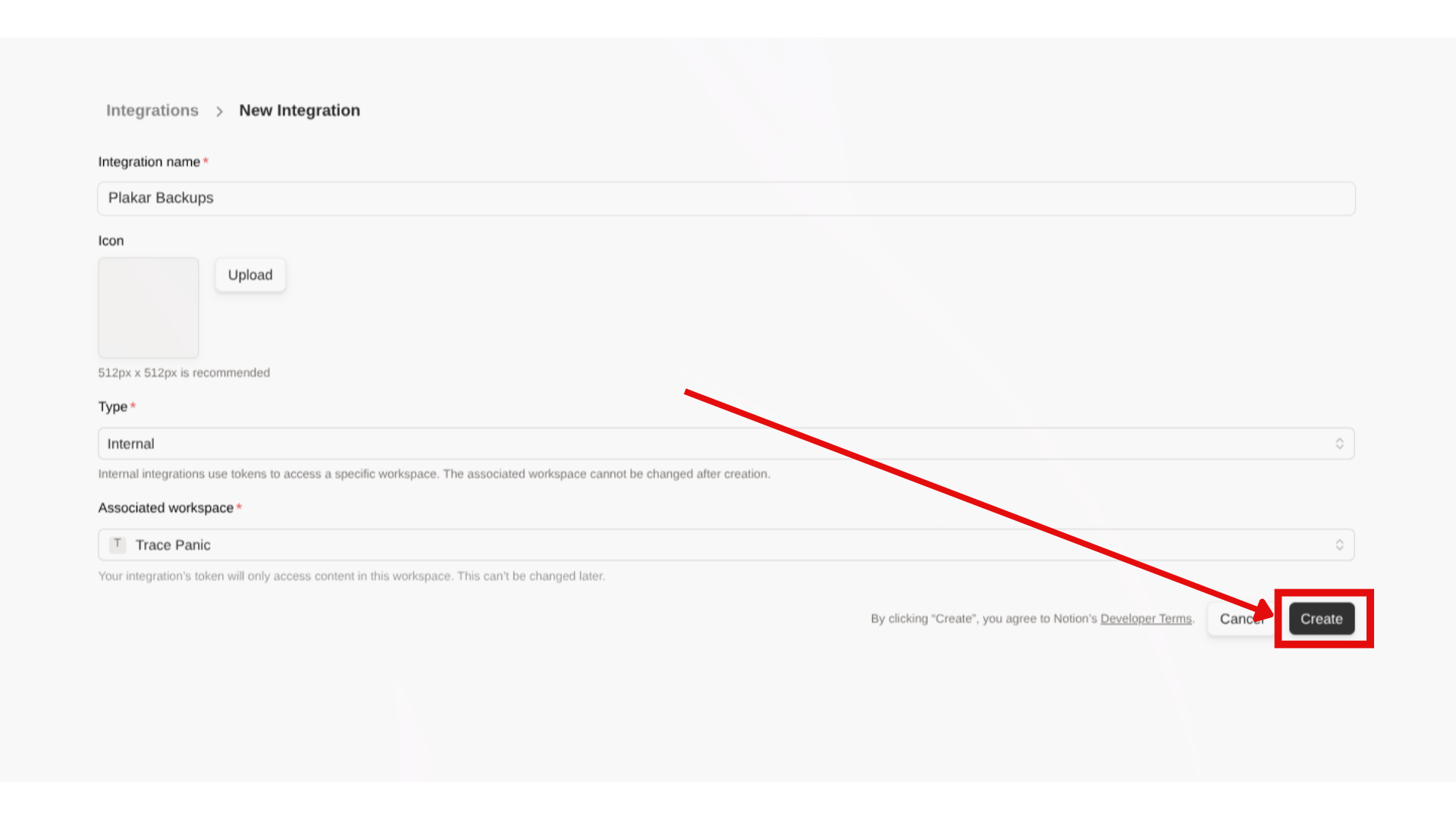
1. Go to
[https://www.notion.so/profile/integrations](https://www.notion.so/profile/integrations)
2. Click **Create a new integration**
3. Configure the integration:
- **Name**: Choose a descriptive name (e.g., "Plakar Backup")
- **Type**: Select **Internal**
- **Associated workspace**: Select the workspace you want to back up
4. Click **Create** to create the integration
5. Click on the **Configure integration settings** in the success popup
### Configure integration capabilities
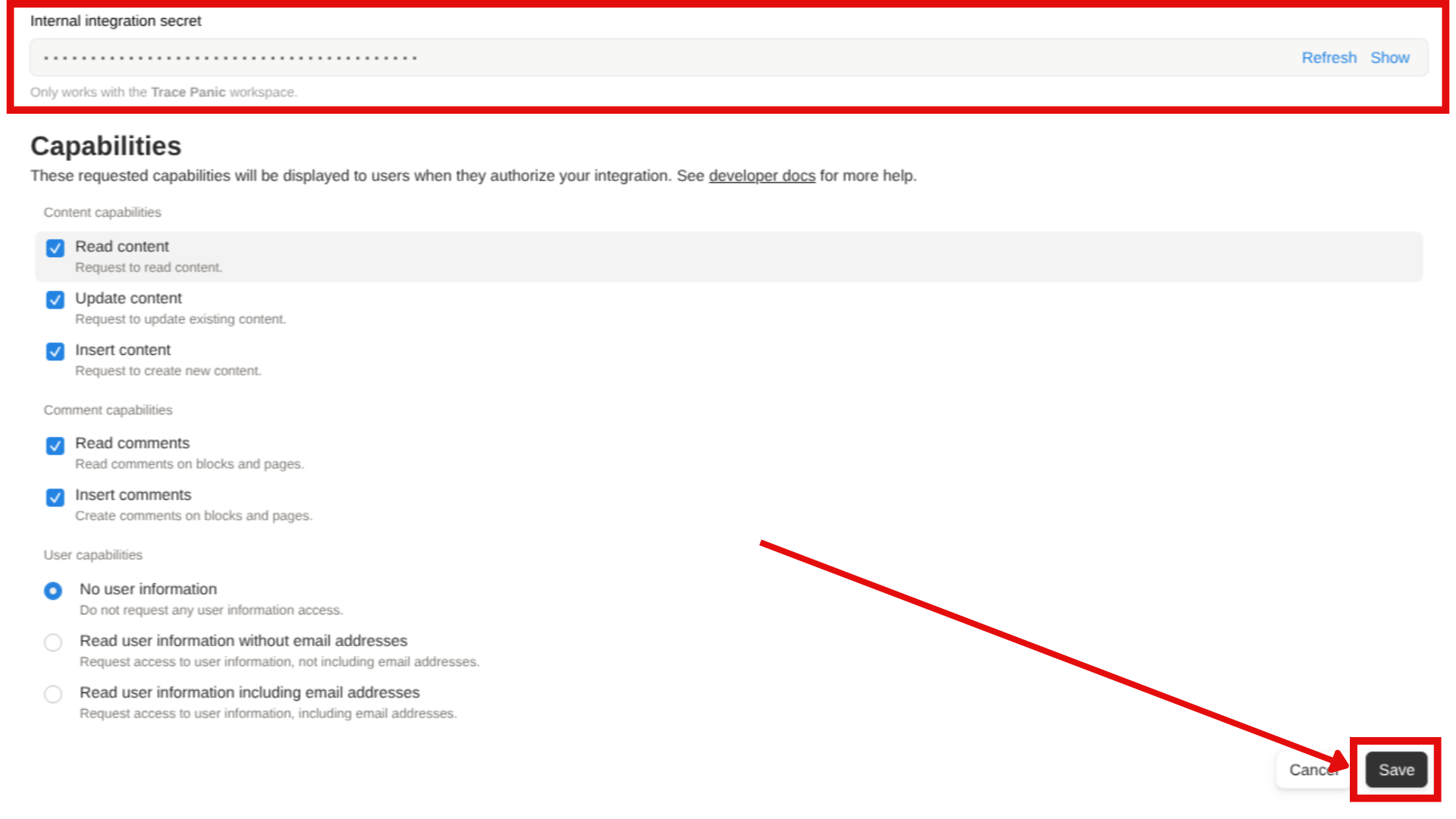
After creating the integration, you need to enable the required capabilities:
1. In the integration settings page, scroll to the **Capabilities** section
2. Enable the following capabilities:
- **Read content**: Required for backing up pages and databases
- **Update content**: Required for restoring pages and databases
- **Insert content**: Required for restoring pages and databases
- **Read comments**: Required for backing up discussion threads
- **Insert comments**: Required for restoring discussion threads
3. Click **Save**
### Copy the API token
1. In the integration settings page just before the **Capabilities** section,
there's the token section
2. Click **Show** on the "Internal Integration Secret"
3. Copy the token (format: `ntn_xxx...`)
> [!NOTE]+ Notion Token
>
> Keep this token secure. Anyone with this token can access and modify pages
> that have been shared with this integration.
### Setup pages access to the integration
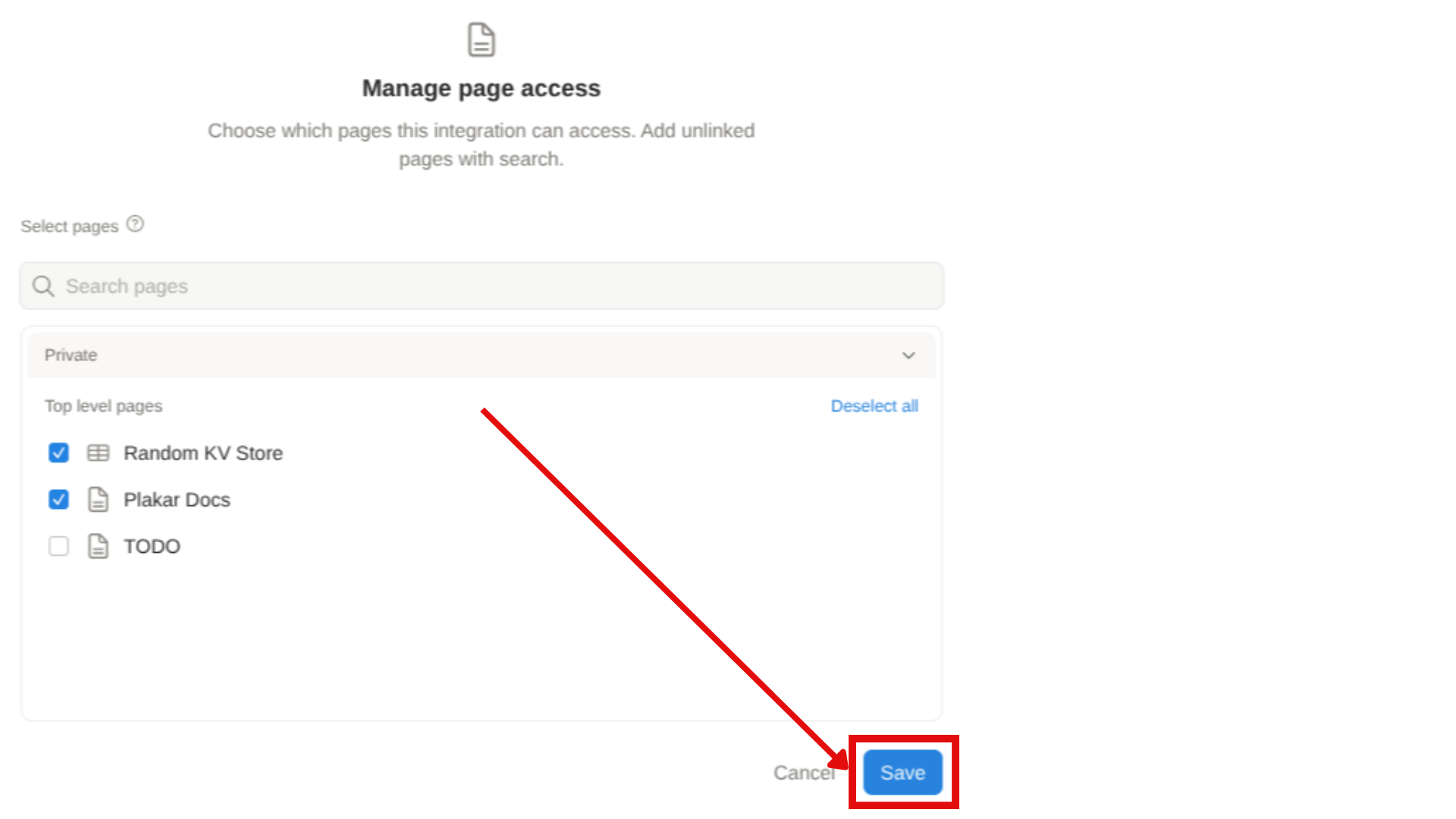
You must enable top-level page access to the integration:
1. Click on **Edit Access**
2. Select the top-level pages and databases you want to backup
3. Click **Save**
> [!NOTE]+ Sharing Pages
>
> Once a page is shared with the integration, all child pages are automatically
> included during backup. You only need to share top-level pages.
## Source connector
The source connector retrieves Notion workspace data via the API and stores it
as structured JSON. This includes page content, databases, blocks, metadata, and
hierarchical relationships.
{{< mermaid >}}
flowchart LR
subgraph Source["Notion"]
FS["Data"]
end
Plakar["Plakar"]
Via["Retrieve data via
Notion source connector"]
Transform["Transform data as a structured JSON document"]
Store["Kloset Store"]
FS --> Via --> Plakar --> Transform --> Store
{{< /mermaid >}}
### Requirements
Before configuring the source connector, ensure you have:
1. **Completed Notion API setup** (see section above)
2. **Notion API token** from your integration
3. **Shared at least one page** with your integration
### Configuration
Create a Notion source configuration:
```bash
$ plakar source add mynotion location=notion:// token=$NOTION_API_TOKEN
```
Back up the workspace to a Kloset store:
```bash
$ plakar at /var/backups backup "@mynotion"
```
### Configuration options
| Option | Required | Description |
| ---------- | -------- | -------------------------------------------- |
| `location` | Yes | Must be set to `notion://` |
| `token` | Yes | Your Notion API token (format: `ntn_xxx...`) |
### What gets backed up
The source connector captures:
- **Pages**: All content, blocks, and page properties
- **Databases**: Structure, properties, views, and all entries
- **Media**: Images, files, and embedded content (stored as references)
- **Comments**: Discussion threads and annotations
- **Metadata**: Creation dates, authors, last edited information
- **Relationships**: Parent-child hierarchies and database links
## Destination connector
The destination connector reads structured JSON from a Kloset store and
recreates pages and content in Notion via the API.
{{< mermaid >}}
flowchart LR
Store["Kloset Store"]
Plakar["Plakar"]
Transform["Reconstruct data from structured JSON document"]
Via["Restore data via
Notion destination connector"]
subgraph Destination["Notion"]
FS["Data"]
end
Store --> Plakar --> Transform --> Via --> FS
{{< /mermaid >}}
### Requirements
Before configuring the destination connector, ensure:
1. **Completed Notion API setup** with insert capabilities enabled
2. **Created or identified a target page** where content will be restored
3. **Shared the target page** with your integration
4. **Have the Page ID** of the target page
### Finding a Page ID
You need to get the Page ID of the page where you want to restore the backup
contents. To find a Notion Page ID:
1. Open the page in Notion
2. Click **Share** in the top right, then **Copy link**
3. The URL format is: `https://www.notion.so/PageName-PAGE_ID`
4. Extract the Page ID (the long alphanumeric string after the last dash)
**Example**: In `https://www.notion.so/MyPage-1234567890abcdef1234567890abcdef`,
the Page ID is `1234567890abcdef1234567890abcdef`.
### Configuration
Create a Notion destination configuration:
```bash
$ plakar destination add mynotion location=notion:// token=$NOTION_API_TOKEN
```
Set the target page ID for restoration:
```bash
$ plakar destination set mynotion rootID=$NOTION_PAGE_ID
```
Restore a snapshot:
```bash
$ plakar at /var/backups restore -to "@mynotion"
```
### Configuration options
| Option | Required | Description |
| ---------- | -------- | --------------------------------------------- |
| `location` | Yes | Must be set to `notion://` |
| `token` | Yes | Notion API token with insert permissions |
| `rootID` | Yes | Notion Page ID where content will be restored |
## Current limitations
- **Permission model**: Each top-level page must be manually shared with the
integration. Pages not explicitly shared will not be backed up, even if linked
from shared pages.
- **Block compatibility**: Some third-party or custom Notion blocks may not
serialize perfectly. All standard Notion blocks are fully supported.
- **Media restoration**: Due to Notion API limitations, media files (images,
PDFs, documents) cannot be restored directly. You can restore media to the
filesystem and manually re-upload.
- **Restoration target**: Restoring requires an existing Notion Page ID as the
destination. The API does not support creating new top-level pages.