
Backing Up an OVHcloud Managed PostgreSQL Database
Overview
This guide backs up an OVHcloud Managed PostgreSQL database using pg_dump streamed through Plakar to OVHcloud Object Storage. The result is an encrypted, deduplicated snapshot stored separately from your database infrastructure.
Architecture
stdin integration"] end subgraph DB["OVHcloud Managed PostgreSQL"] Postgres["PostgreSQL"] end subgraph Storage["OVHcloud S3 Object Storage"] S3["Kloset Store
(Encrypted & Deduplicated)"] end Postgres -->|SQL dump| PGDump PGDump -->|stdin| Plakar Plakar -->|Snapshots| S3 classDef client fill:#524cff,color:#ffffff classDef db fill:#ffe4e6 classDef storage fill:#dbeafe class PGDump,Plakar client class Postgres db class S3 storage
Prerequisites
- OVHcloud account with billing configured
- Plakar installed on backup client
- PostgreSQL client tools (
pg_dump) - OVHcloud Object Storage bucket configured
Create PostgreSQL Database
Provision database
- Log in to OVHcloud Control Panel
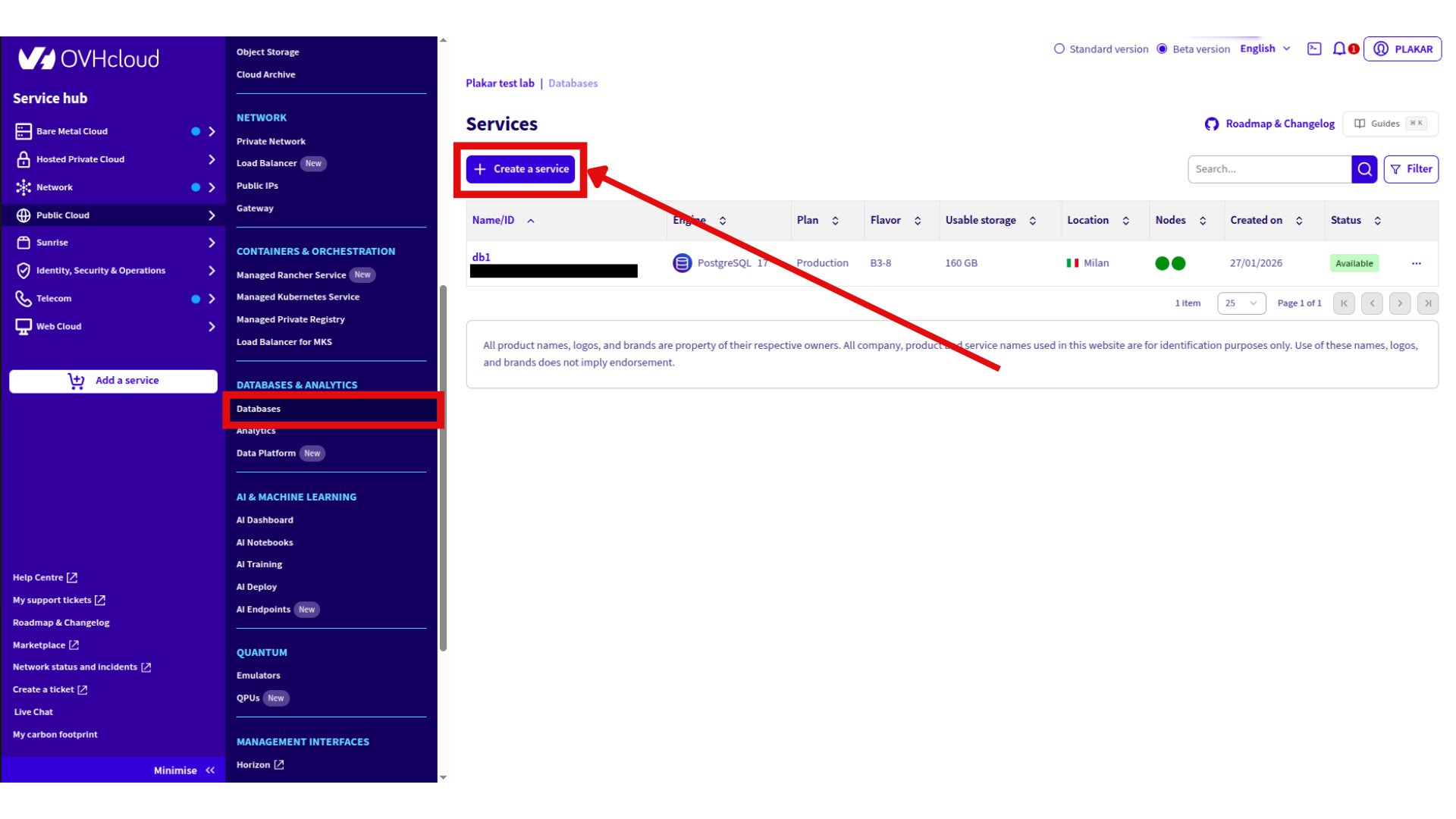
- Go to Public Cloud → Databases & Analytics → Databases
- Click Create a service
- Configure:
- Database name
- Engine: PostgreSQL
- Version: 14-18 (OVHcloud supported)
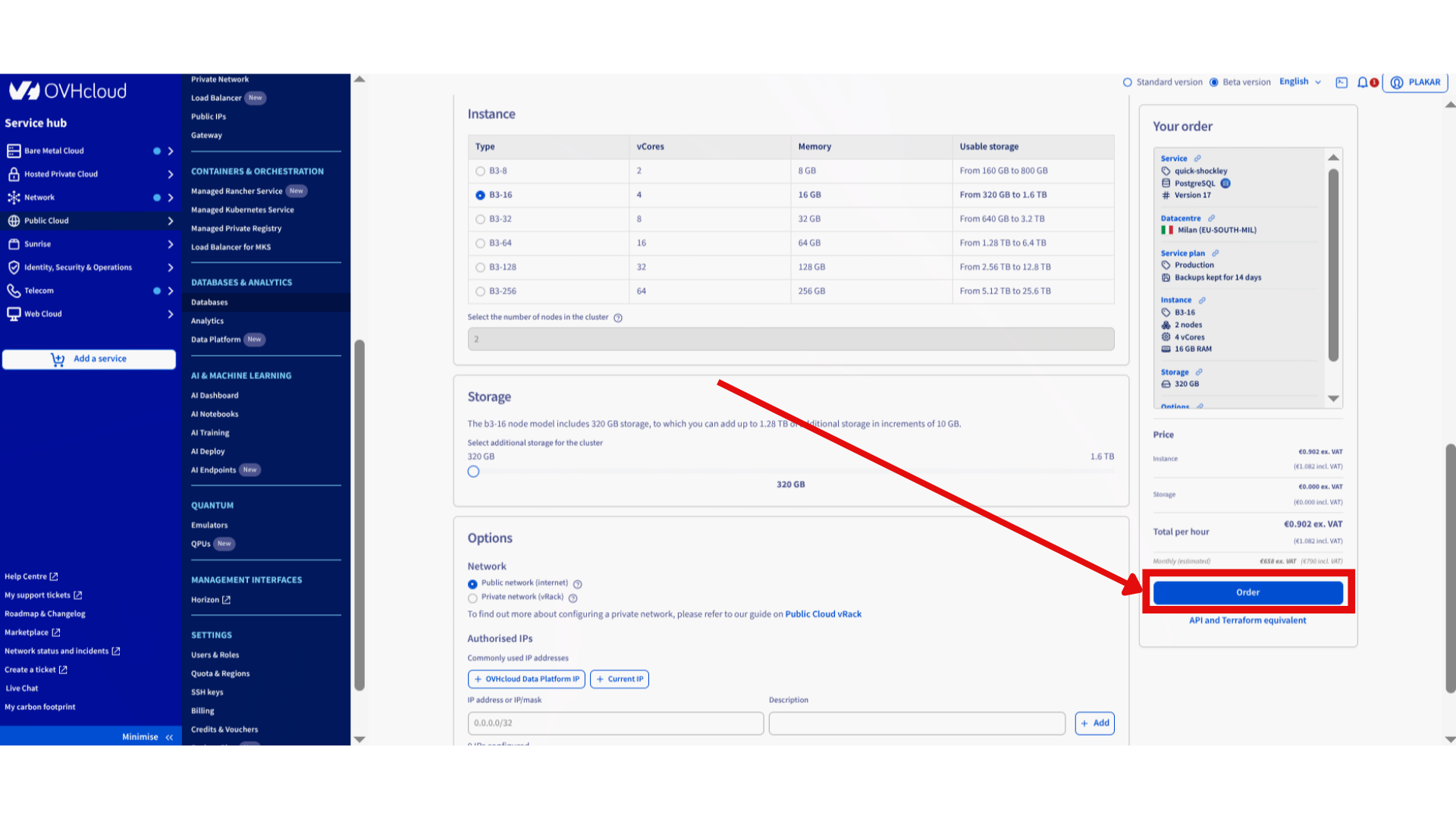
- Instance: Select vCores, memory, storage
- Network: Public network
- Click Order
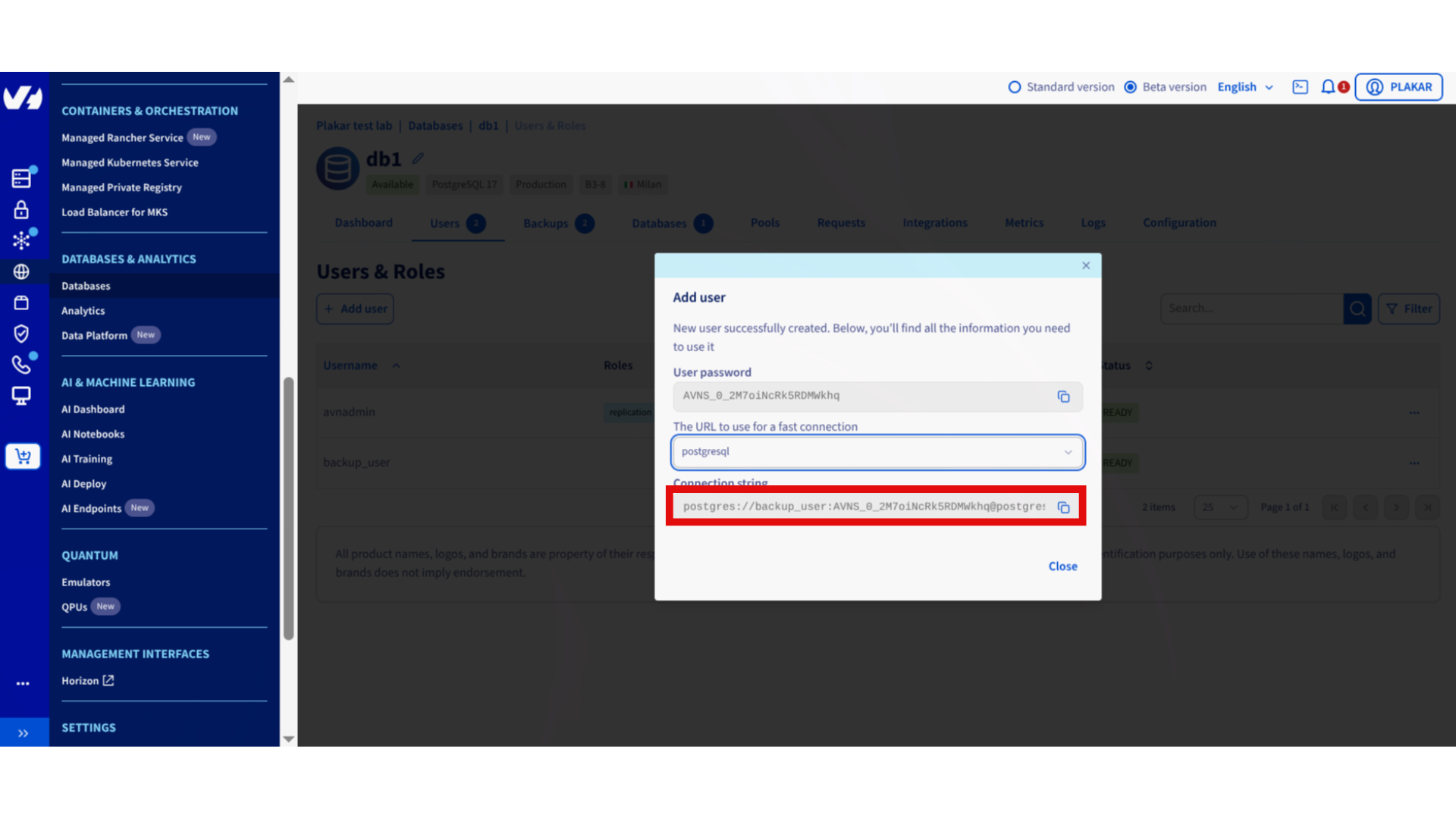
Create backup user
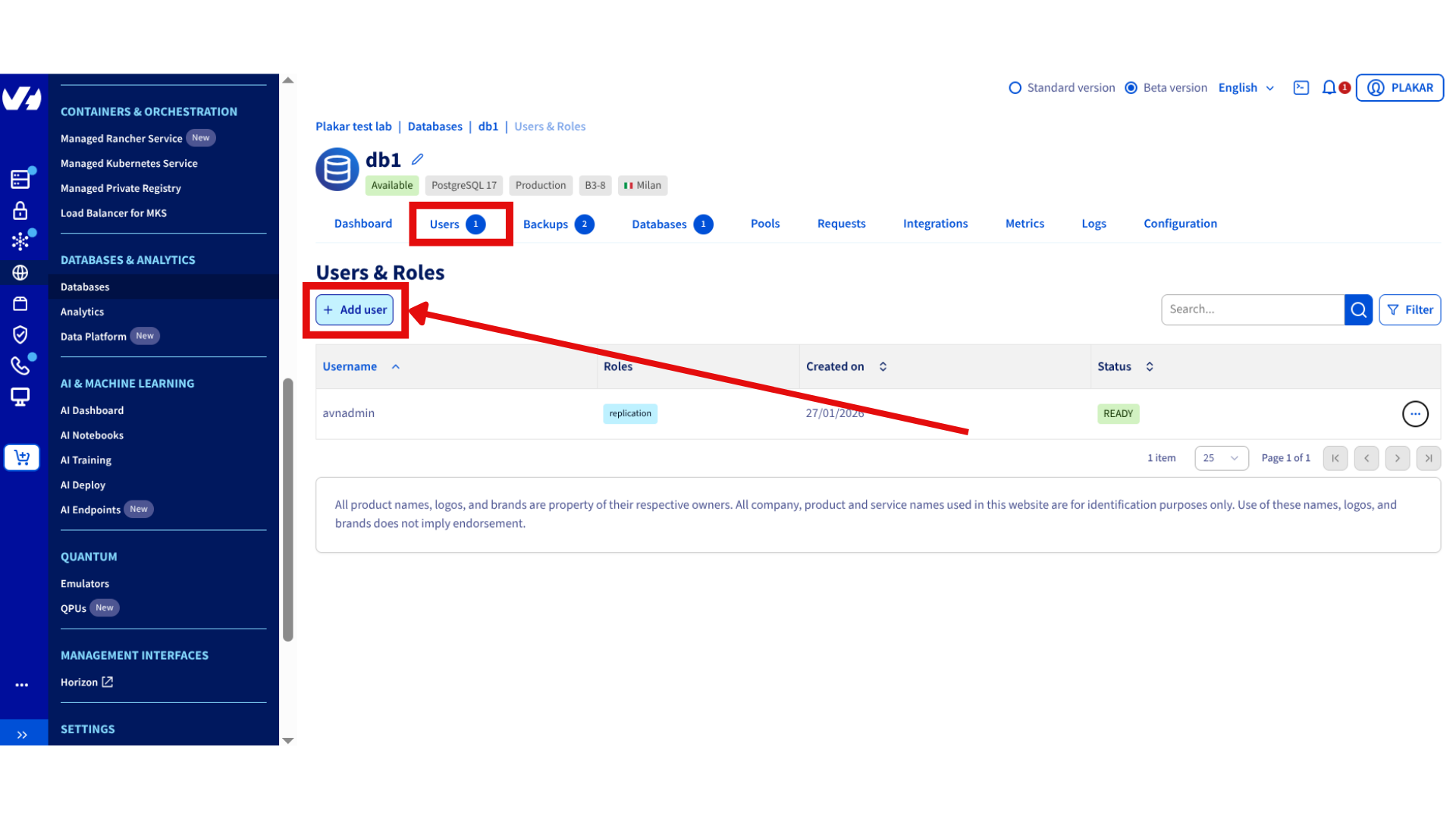
- Open PostgreSQL database in dashboard
- Go to Users tab
- Click Add user
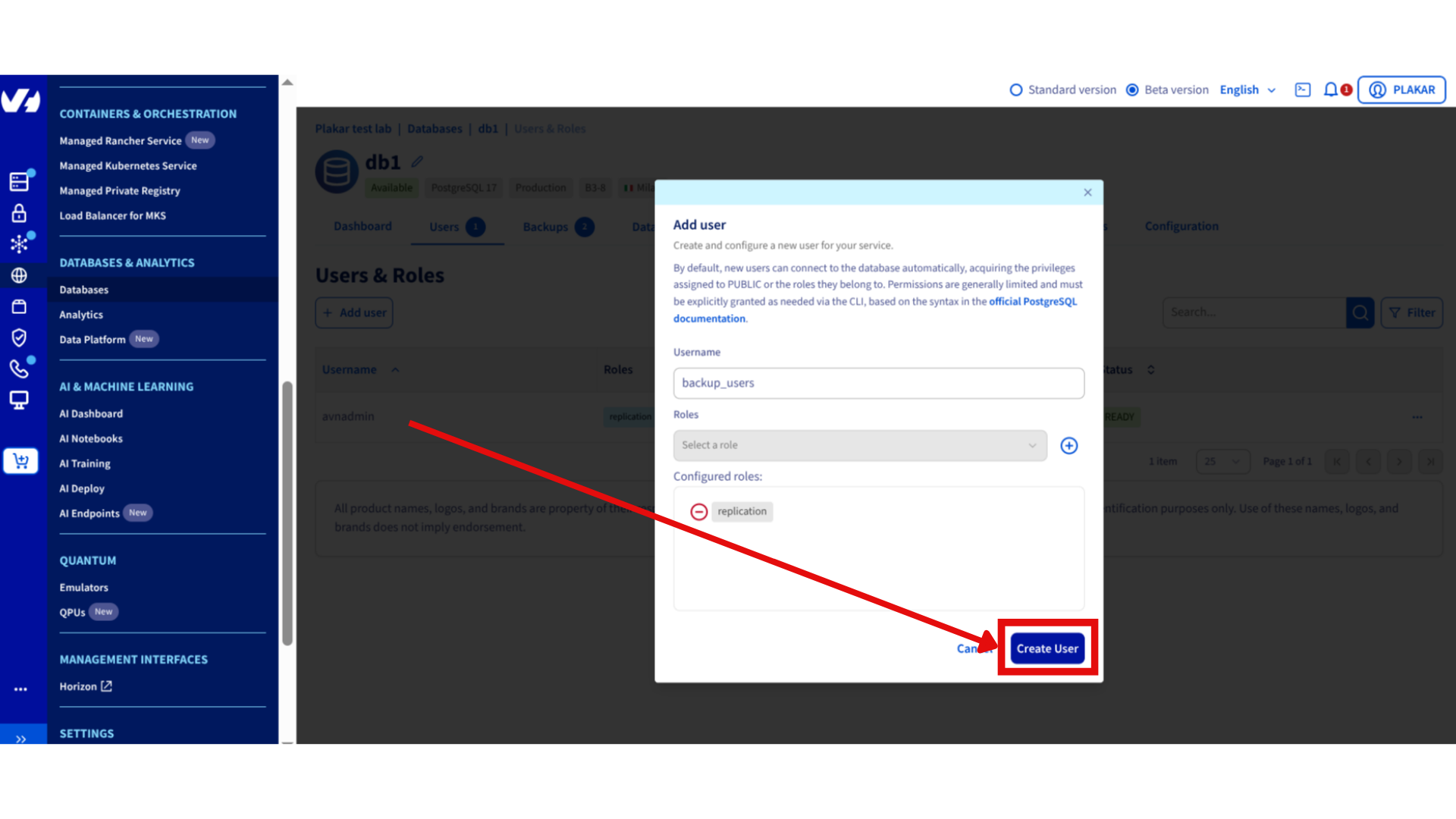
- Configure:
- Username:
backup_user - Role:
replication
- Username:
- Save connection string
Install Tools
Install PostgreSQL client:
sudo apt update
sudo apt install postgresql-client
Install Plakar using the installation guide.
Configure PostgreSQL Connection
Set environment variables from connection string:
export PGHOST=<DB_HOST>
export PGPORT=5432
export PGUSER=<DB_USER>
export PGPASSWORD=<DB_PASSWORD>
Test connection:
psql -X <DB_NAME>
Exit with \q.
Configure Object Storage
Install S3 integration
plakar login -email you@example.com
plakar pkg add s3
Create Object Storage bucket
If not already configured, follow: OVHcloud Object Storage setup
Add Kloset store
plakar store add ovhcloud-s3-postgres \
  location=s3://<S3_ENDPOINT>/<BUCKET_NAME> \
  access_key=<ACCESS_KEY> \
  secret_access_key=<SECRET_KEY> \
  use_tls=true
Replace:
<S3_ENDPOINT>: e.g.,s3.eu-west-par.io.cloud.ovh.net<BUCKET_NAME>: e.g.,plakar-backups<ACCESS_KEY>and<SECRET_KEY>: From OVHcloud Control Panel
Initialize store
plakar at "@ovhcloud-s3-postgres" create
Back Up Database
Run backup:
pg_dump <DB_NAME> | plakar at "@ovhcloud-s3-postgres" backup stdin:dump.sql
Verify:
plakar at "@ovhcloud-s3-postgres" ls
Restore Database
Retrieve snapshot ID:
plakar at "@ovhcloud-s3-postgres" ls
Restore:
plakar at "@ovhcloud-s3-postgres" cat <SNAPSHOT_ID>:dump.sql | psql <DB_NAME>
Automate Backups
Create cron job for daily backups:
crontab -e
Add:
0 2 * * * pg_dump <DB_NAME> | plakar at "@ovhcloud-s3-postgres" backup stdin:dump-$(date +\%Y\%m\%d).sql
Troubleshooting
Connection refused
- Verify
PGHOST,PGPORT,PGUSER,PGPASSWORDenvironment variables - Check network access to managed database
Authentication failed
- Confirm backup user has
replicationrole - Verify password in connection string
S3 upload errors
- Check S3 credentials:
plakar store show ovhcloud-s3-postgres - Verify endpoint URL and bucket name
- Confirm bucket exists in OVHcloud dashboard
pg_dump not found
- Install PostgreSQL client:
sudo apt install postgresql-client
Found a bug or mistake in the documentation? Create an issue on GitHub