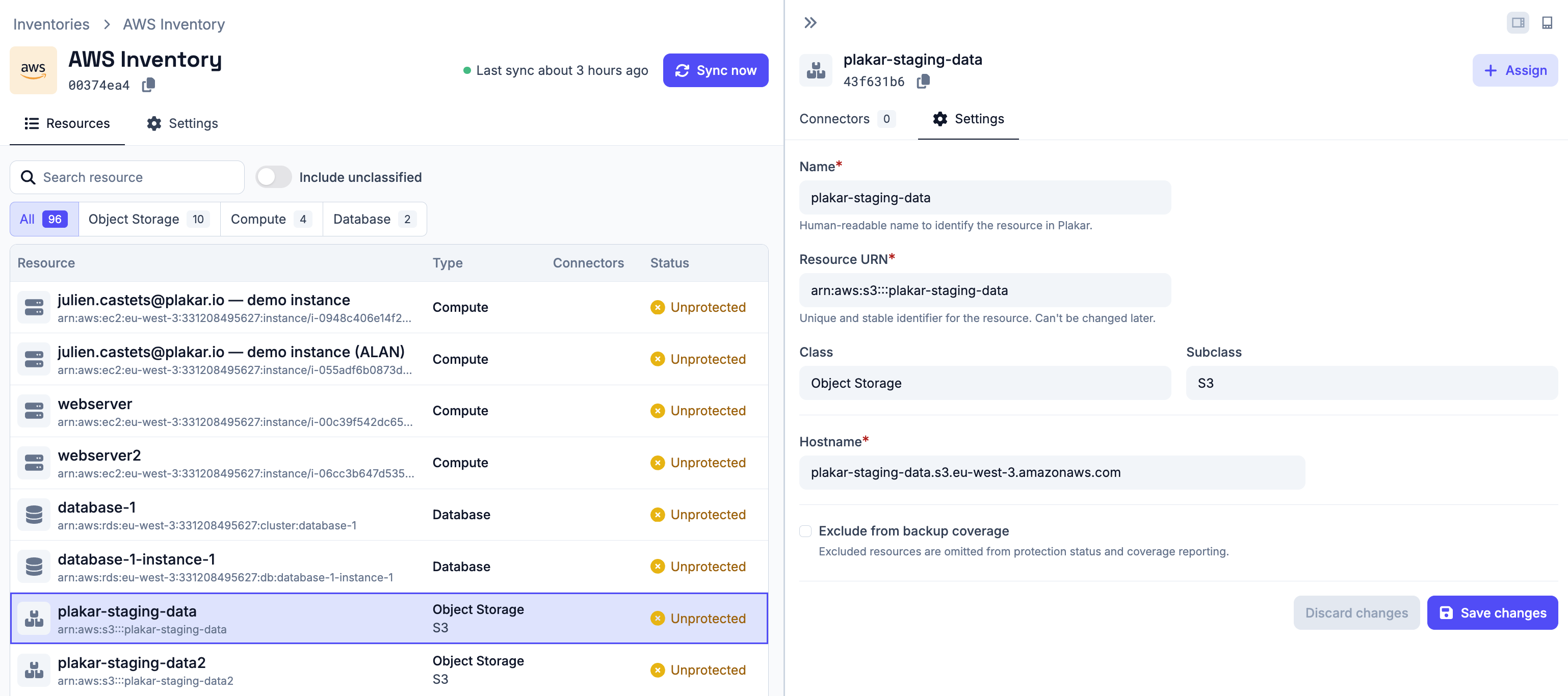
AWS Inventory
#The AWS inventory allows Plakar Control Plane to connect to your AWS account and discover and classify your resources.
Once connected, Plakar Control Plane discovers all resources in your AWS account and makes them available for management directly within Plakar Control Plane.
Supported Resources
#| Resource | Source | Store | Destination |
|---|---|---|---|
| S3 Bucket | Yes | Yes | Yes |
| EC2 Instance | Yes | No | Yes |
| PostgreSQL(RDS) | Yes | No | Yes |
Authentication
#There are two ways to authenticate your AWS account, depending on where Plakar Control Plane is deployed:
- On AWS infrastructure: For Plakar Control Plane instances deployed on AWS using the AWS Marketplace AMI, use the IAM credential type. Plakar Control Plane will use the IAM role and permissions attached to the EC2 instance to discover and manage your resources.
- Outside AWS infrastructure: If Plakar Control Plane is deployed on another cloud provider (such as Scaleway or OVHcloud) or on-premises, use the Access Key credential type. You will need to provide an AWS access key and secret key with sufficient permissions.
When using the IAM credential type, an IAM role with the required permissions must first be attached to the Plakar Control Plane EC2 instance.
To attach the role:
- Open the EC2 Instances page in the AWS Console
- Select the Plakar Control Plane instance
- Open
Actions -> Security -> Modify IAM role - Select the IAM role containing the required permissions
- Save the changes
Once attached, selecting the IAM credential type during AWS inventory setup will use the permissions from the IAM role attached to the instance.
Obtaining Access Keys
#To use the Access Key credential type, you must create an AWS IAM user with the required permissions and generate an access key for that user.
Access keys consist of:
- Access key ID
- Secret access key
SECRET KEYS
The secret access key is only displayed once by AWS. Make sure to store it securely or use a secret provider.
Required Permissions
#Plakar Control Plane requires AWS permissions to discover and classify supported resources in your AWS account.
The same permissions are required for both:
- The Access Key credential type
- IAM roles attached to the EC2 instance when using the IAM credential type
Use the following IAM policy:
{
  "Version": "2012-10-17",
  "Statement": [
    {
      "Effect": "Allow",
      "Action": [
        "ec2:DescribeInstances",
        "resource-explorer-2:Search",
        "resource-explorer-2:List*",
        "resource-explorer-2:Get*",
        "s3:ListAllMyBuckets",
        "rds:DescribeDBInstances",
        "rds:DescribeDBClusters"
      ],
      "Resource": "*"
    }
  ]
}
Permission Details
#| Permission | Description |
|---|---|
ec2:DescribeInstances |
Discovers EC2 instances and related metadata |
resource-explorer-2:Search |
Searches AWS resources across the account |
resource-explorer-2:List* |
Lists Resource Explorer resources and views |
resource-explorer-2:Get* |
Retrieves Resource Explorer metadata |
s3:ListAllMyBuckets |
Discovers S3 buckets in the account |
rds:DescribeDBInstances |
Discovers RDS database instances |
rds:DescribeDBClusters |
Discovers RDS database clusters |
Adding the AWS Inventory
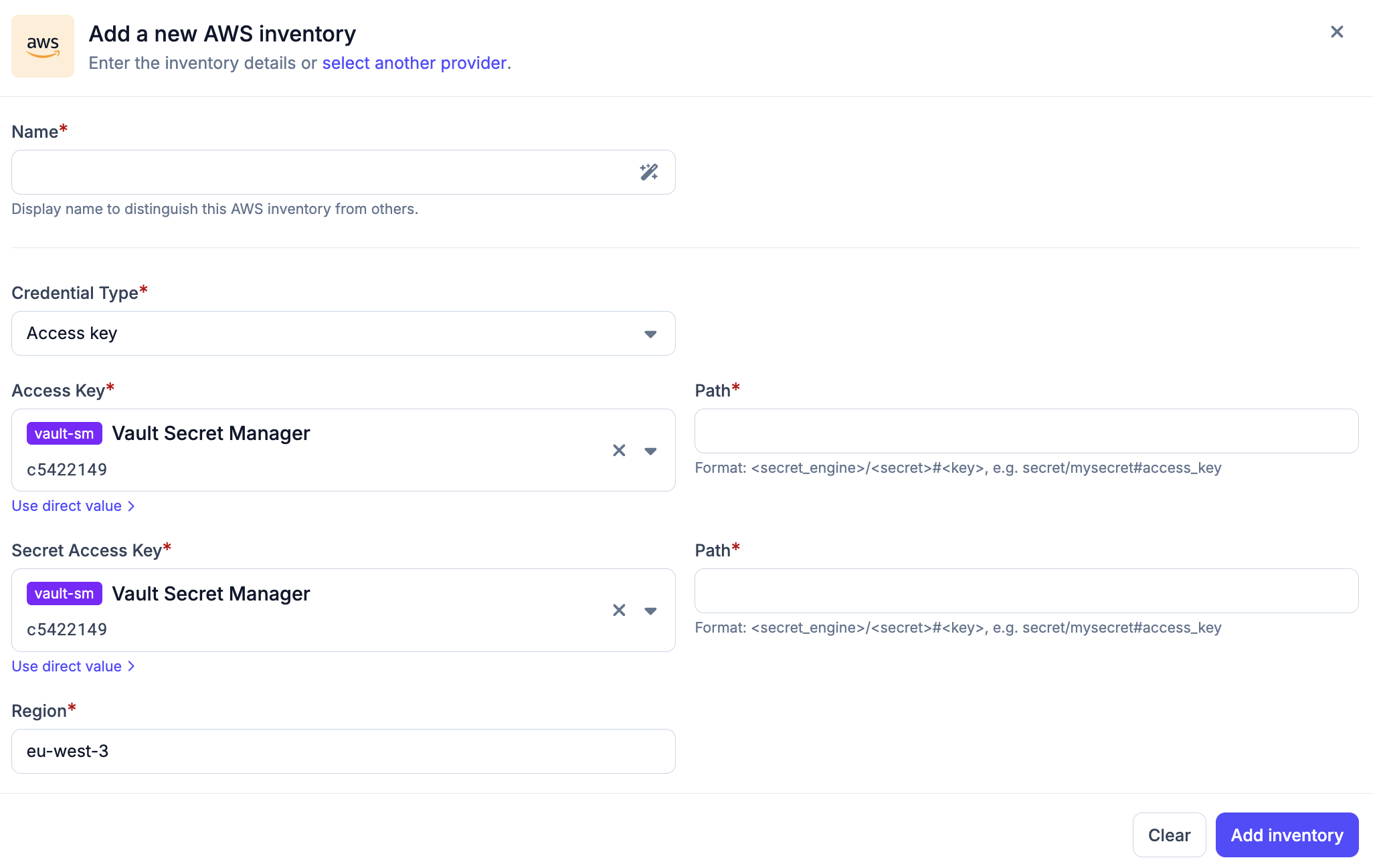
#When creating a new AWS inventory, you must provide the following:
- Name for the inventory
- Credential Type
- IAM (use only when running on AWS)
- Access Key (for all other deployments)
- Access key and secret key (for Access Key authentication). These can be provided directly or loaded via a secret provider (see secret providers documentation)
- Region
After creating the inventory, you must trigger a synchronization to discover and load resources. You can run synchronization at any time to refresh the inventory, for example after adding new resources to your AWS account.
Resource Visibility
#By default, the inventory table displays only resources that Plakar Control Plane supports:
- Object storage resources (S3 buckets)
- Compute resources (EC2 instances)
- Database resources (PostgreSQL RDS instances)
All other discovered resources are marked as unclassified and are hidden from the table by default. To view all discovered resources, enable the Include unclassified toggle.
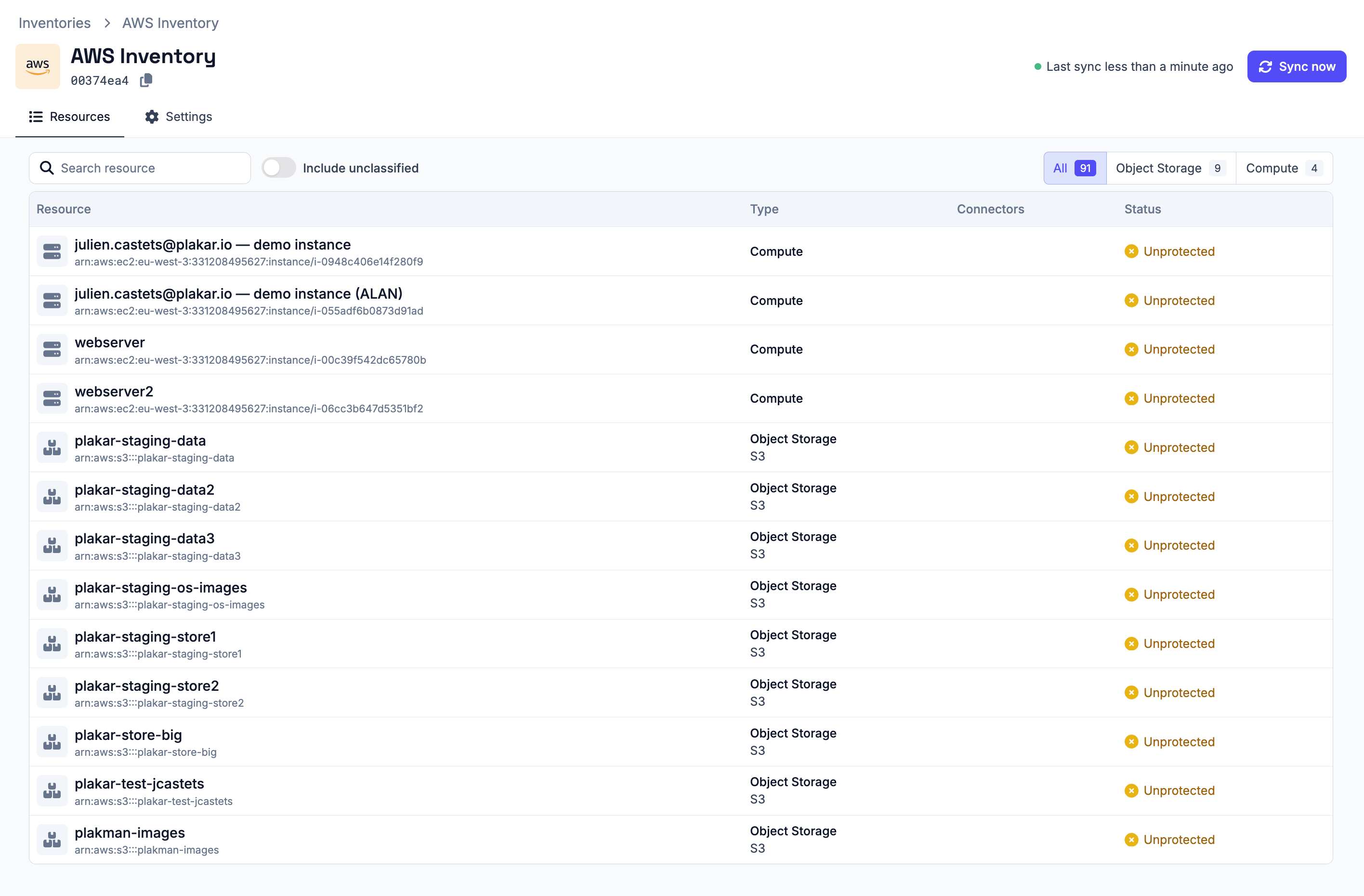
All configuration details provided during inventory creation can be updated later in the Settings tab. The inventory can also be deleted entirely from this tab if no longer needed.
Managing Resources
#Resources in an AWS inventory are automatically discovered and synchronized. They are managed by the inventory and cannot be manually created or deleted.
You can select a resource to open its details in the side panel. The only configurable option is backup coverage, which can be enabled or disabled per resource.
Backup coverage tracks how many of your resources are protected by backups. If a resource does not need to be backed up (for example, a test database), you can exclude it from coverage. Excluded resources are omitted from protection status and coverage reporting.