VMware vSphere Installation
#Plakar Control Plane can be deployed on vCenter using the vSphere HTML Client. Two deployment methods are supported:
- OVA: imports a pre-built appliance with the recommended virtual machine configuration already defined, including CPU and memory settings
- ISO: creates a virtual machine manually and boot from the Plakar Control Plane ISO image, requiring the virtual machine configuration to be done manually
Both images can be downloaded from the Plakar Control Plane Downloads Page.
Installation from OVA
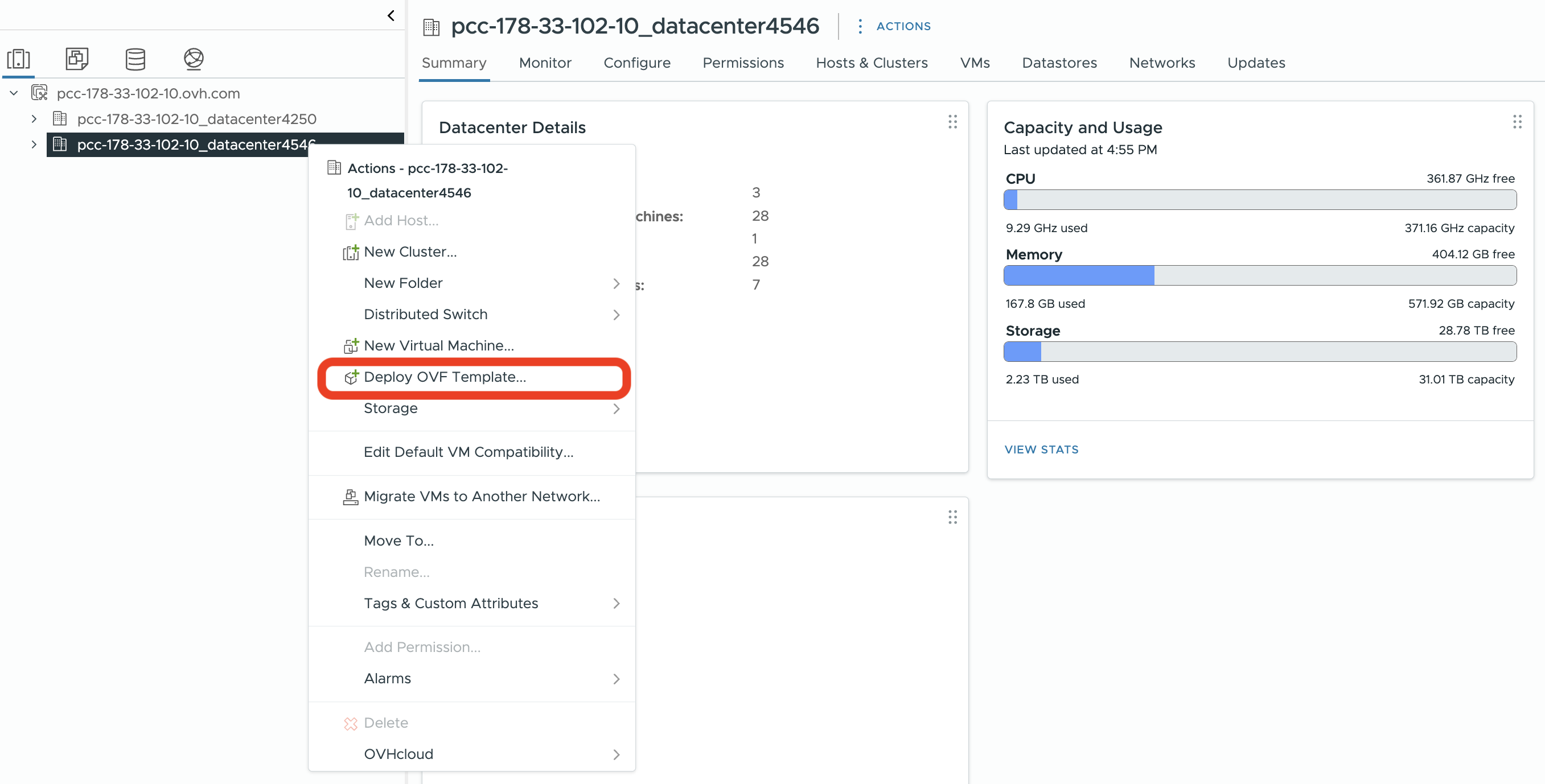
#In the vSphere HTML Client, open Hosts and Clusters (first column on the sidebar), right-click the datacenter that will contain the appliance, and select Deploy OVF Template.
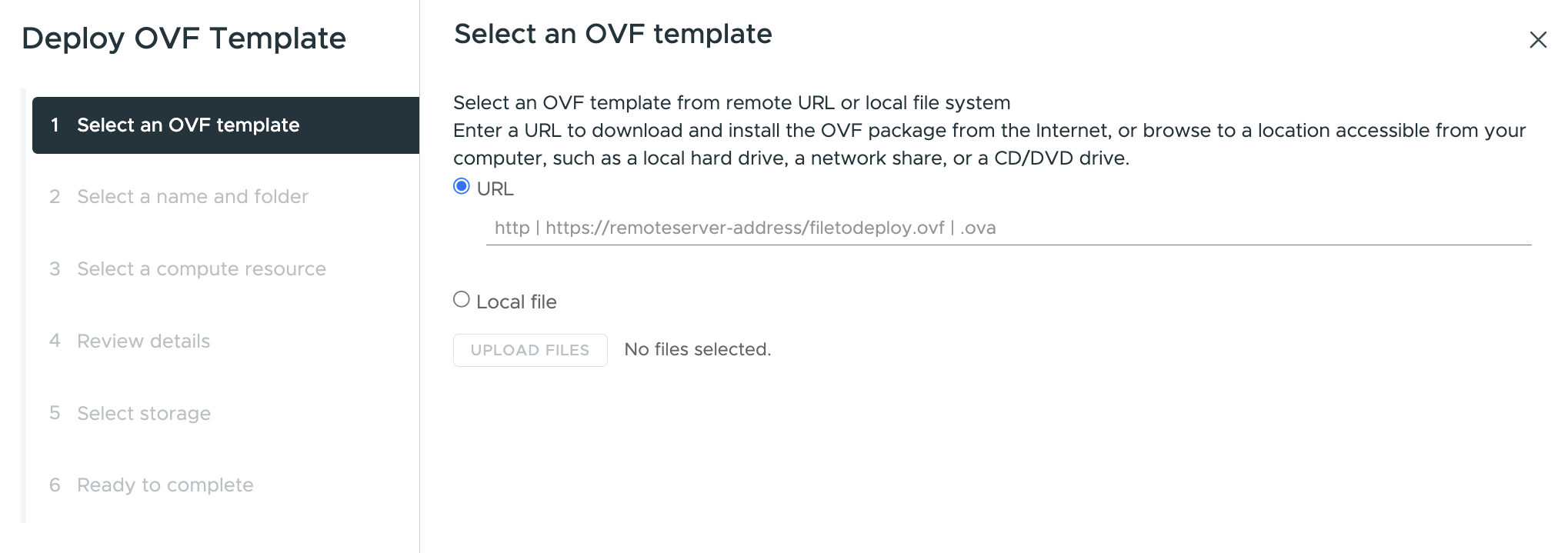
Select an OVF template
#The deployment wizard supports both a local file upload and a remote HTTP or HTTPS URL. For most deployments, choose Local file and upload the Plakar OVA from your workstation.
Warning
URL-based imports are more sensitive to reachability and URL format than a direct upload. If you use the URL option, the OVA must be hosted at a stable, directly reachable HTTP or HTTPS URL that the VMware infrastructure can fetch. For a standalone installation, a local file upload is the more predictable path.
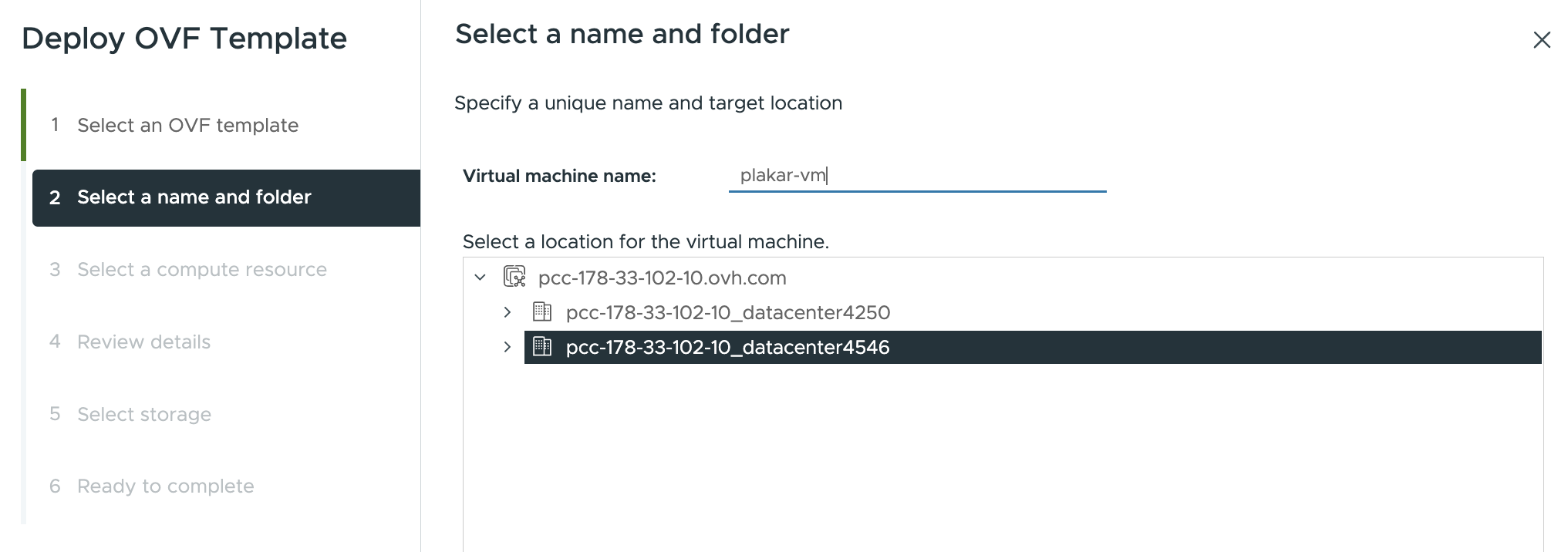
Specify a name and target location
#Enter a name for the virtual machine and select the datacenter as the target location.
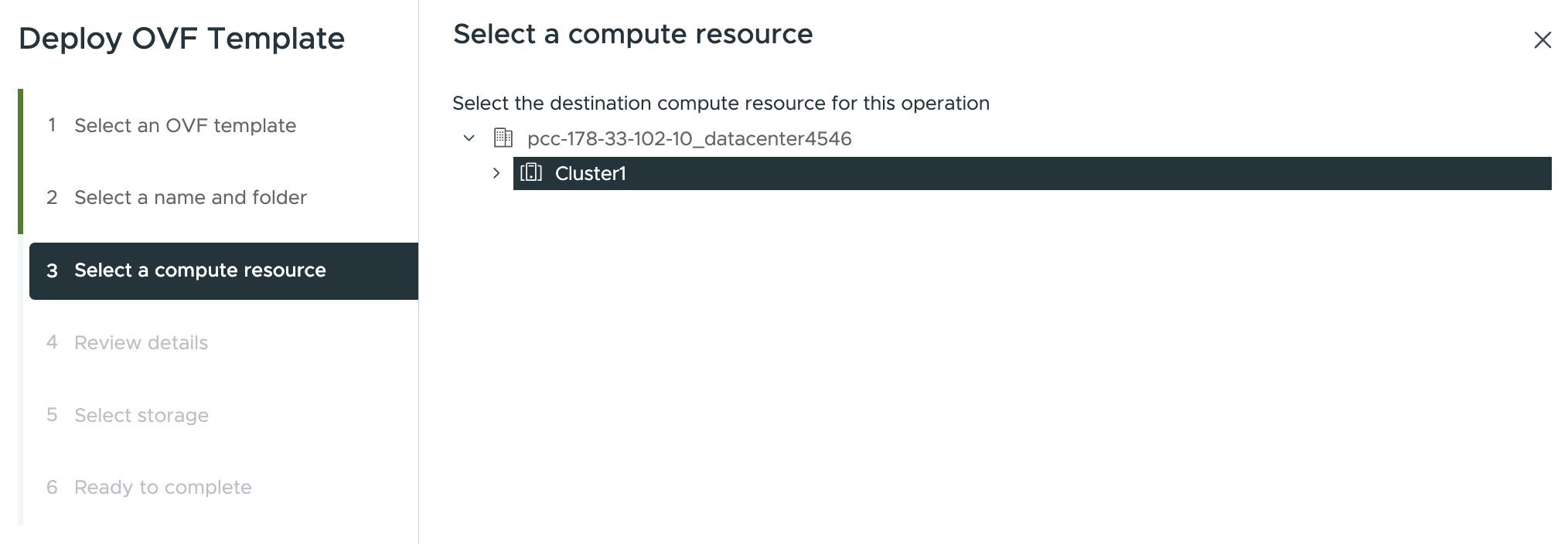
Select a compute resource
#Select the destination compute resource for the datacenter. This will typically
be your cluster, for example Cluster1.
Review details
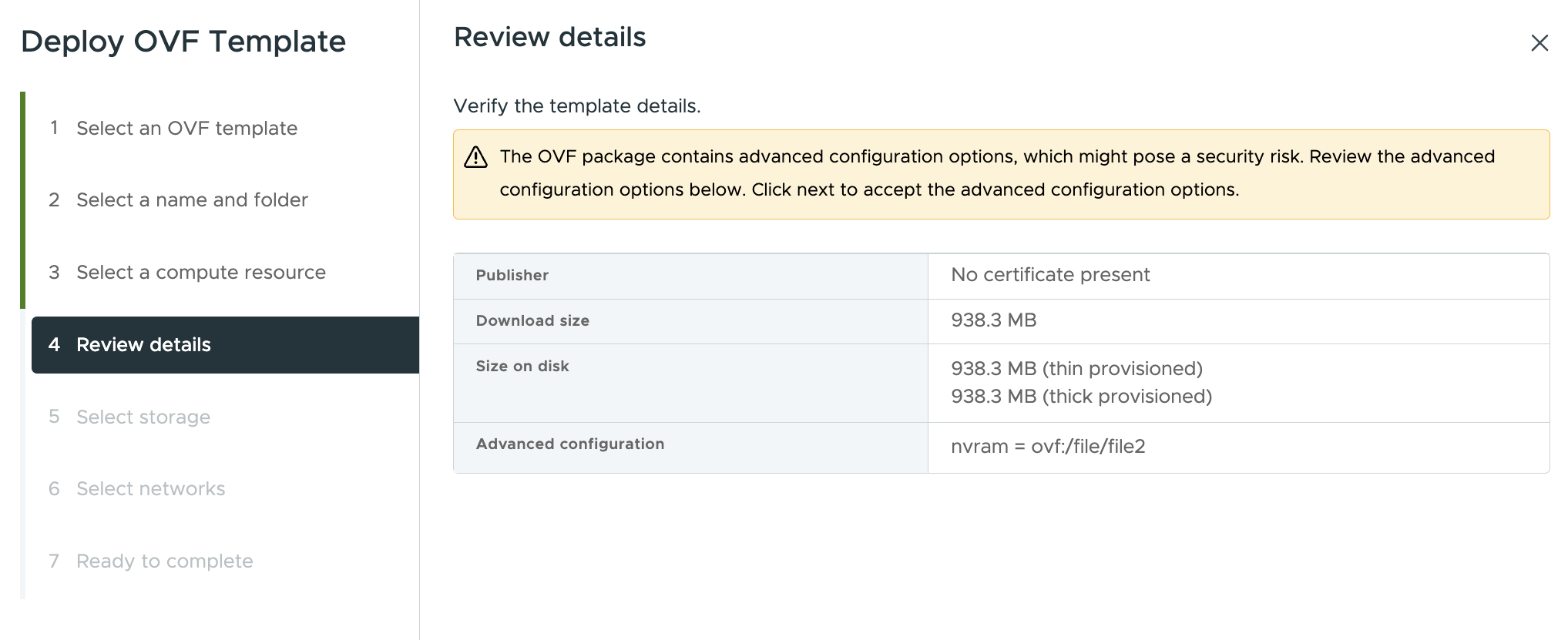
#The wizard displays package metadata for the OVA. It is normal for vSphere to warn that the OVF package contains advanced configuration options. VMware documents that these settings can include BIOS UUID information, MAC addresses, boot order, and PCI slot numbers. If the OVA was downloaded from the Plakar downloads page, this warning is expected and can be dismissed by clicking Next.
Select storage
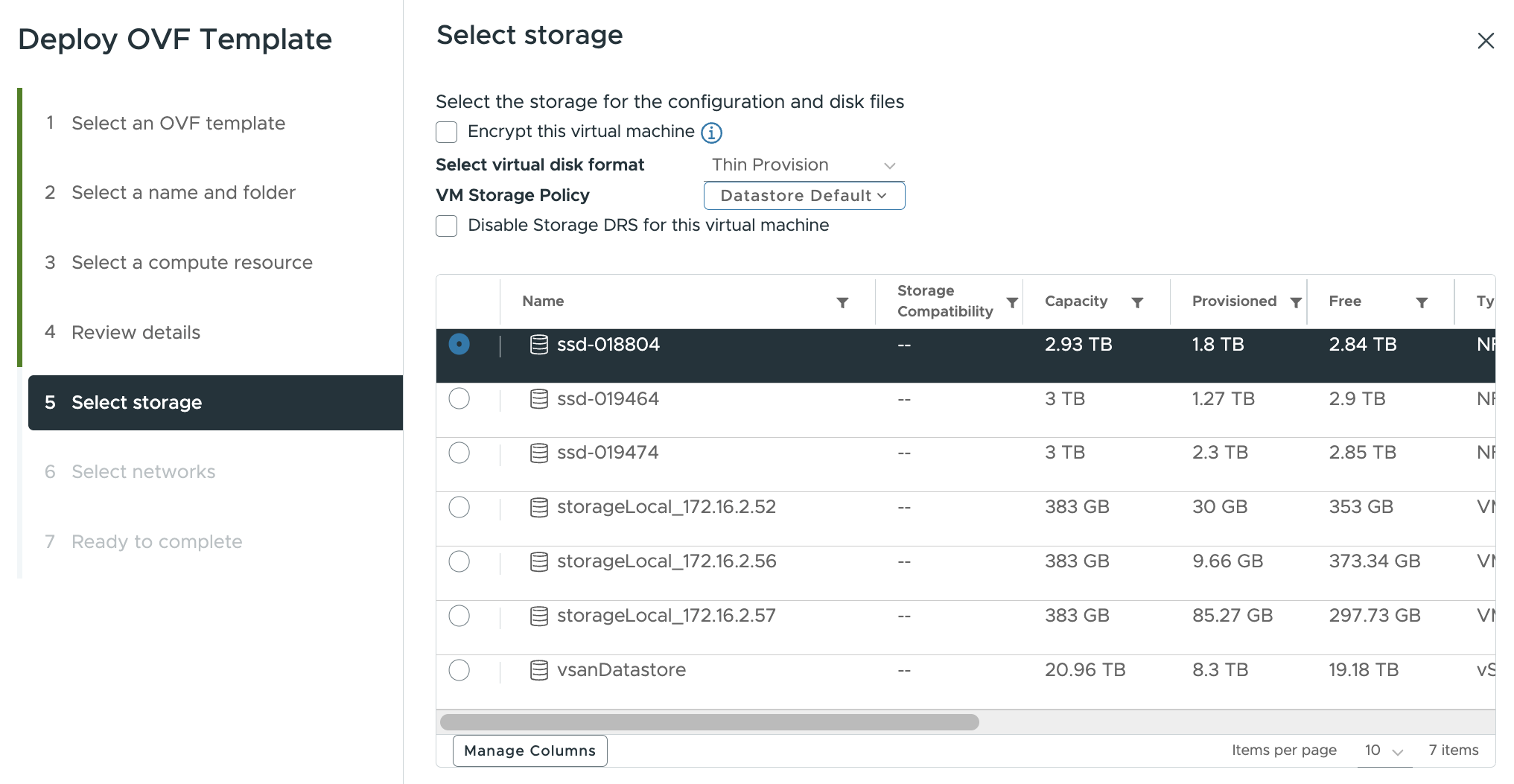
#Select the datastore that will hold the virtual machine configuration and disk files.
Note
Avoid selecting a host-local datastore such as storageLocal for production
deployments. A host failure will leave the virtual machine unable to restart
if its disk files are on local storage that is not accessible to other hosts
in the cluster.
Select networks
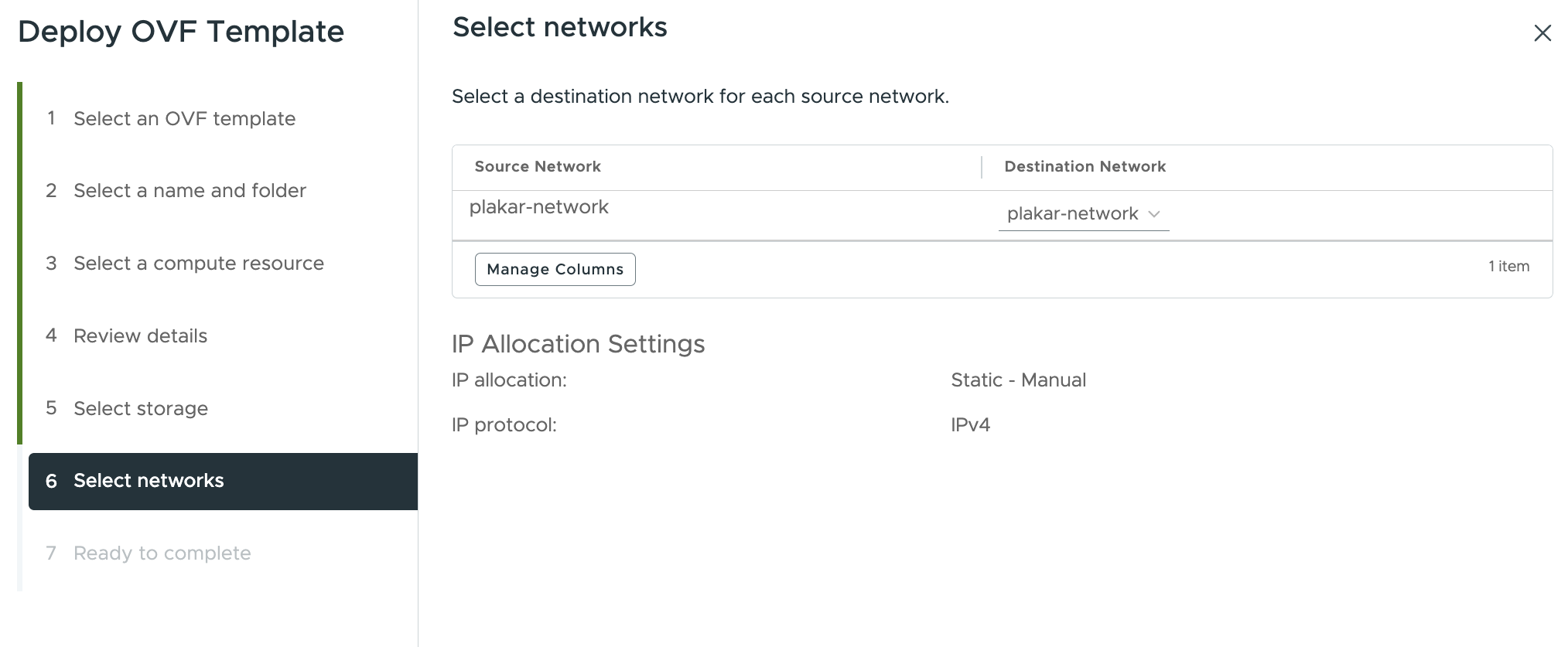
#Map the source network to the destination network segment you have prepared in
your vCenter environment. If your environment uses an NSX-backed network segment,
select it as the destination network, for example plakar-network.
Ready to complete
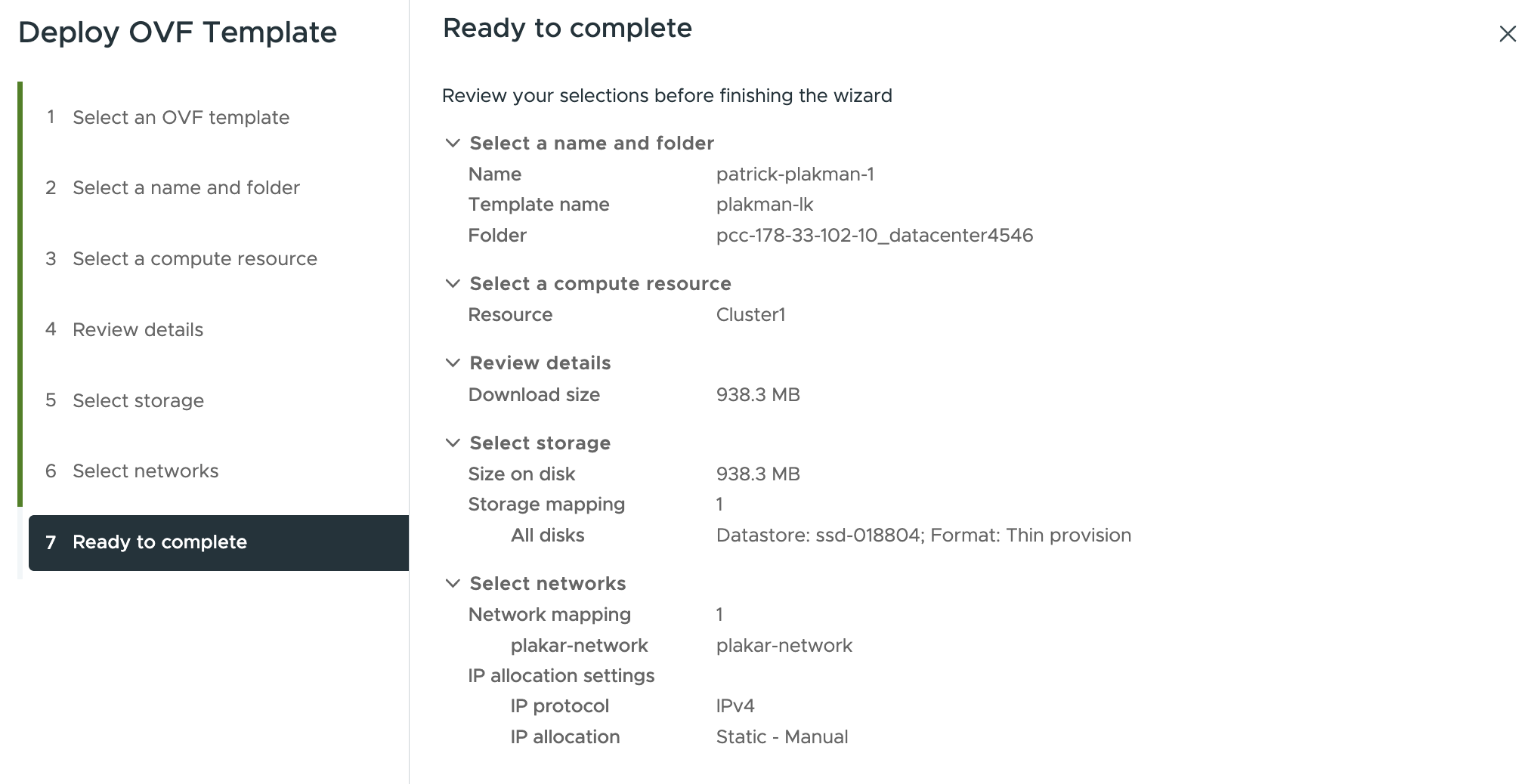
#Review your selections and click Finish. You can monitor the import progress from Recent Tasks until the virtual machine appears in the inventory.
Installation from ISO
#The ISO installation method creates a new virtual machine manually and boots it from the Plakar Control Plane ISO image. This method is used when you want to configure the virtual machine hardware yourself instead of importing the pre-built OVA appliance.
Upload the ISO to a datastore
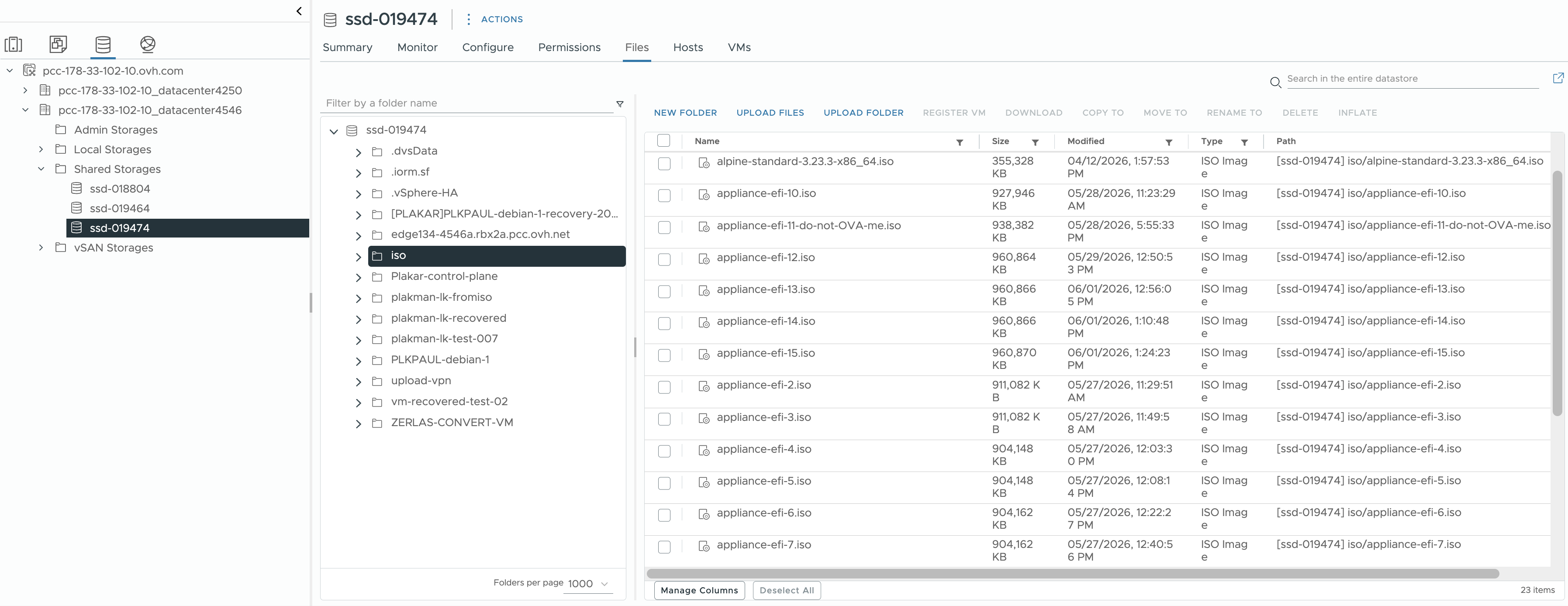
#Before creating the virtual machine, upload the Plakar Control Plane ISO to a datastore that can be accessed by the host or cluster that will run the appliance.
In the vSphere HTML Client, open the datastore where you want to store the ISO, then open the Files view. Create a folder for ISO images if needed, then upload the Plakar Control Plane ISO from your workstation.
Note
Prefer a shared datastore for ISO images and production virtual machines. Keeping the ISO or the virtual machine disk files on host-local storage can cause access issues when the VM needs to run on another host.
Create a new virtual machine
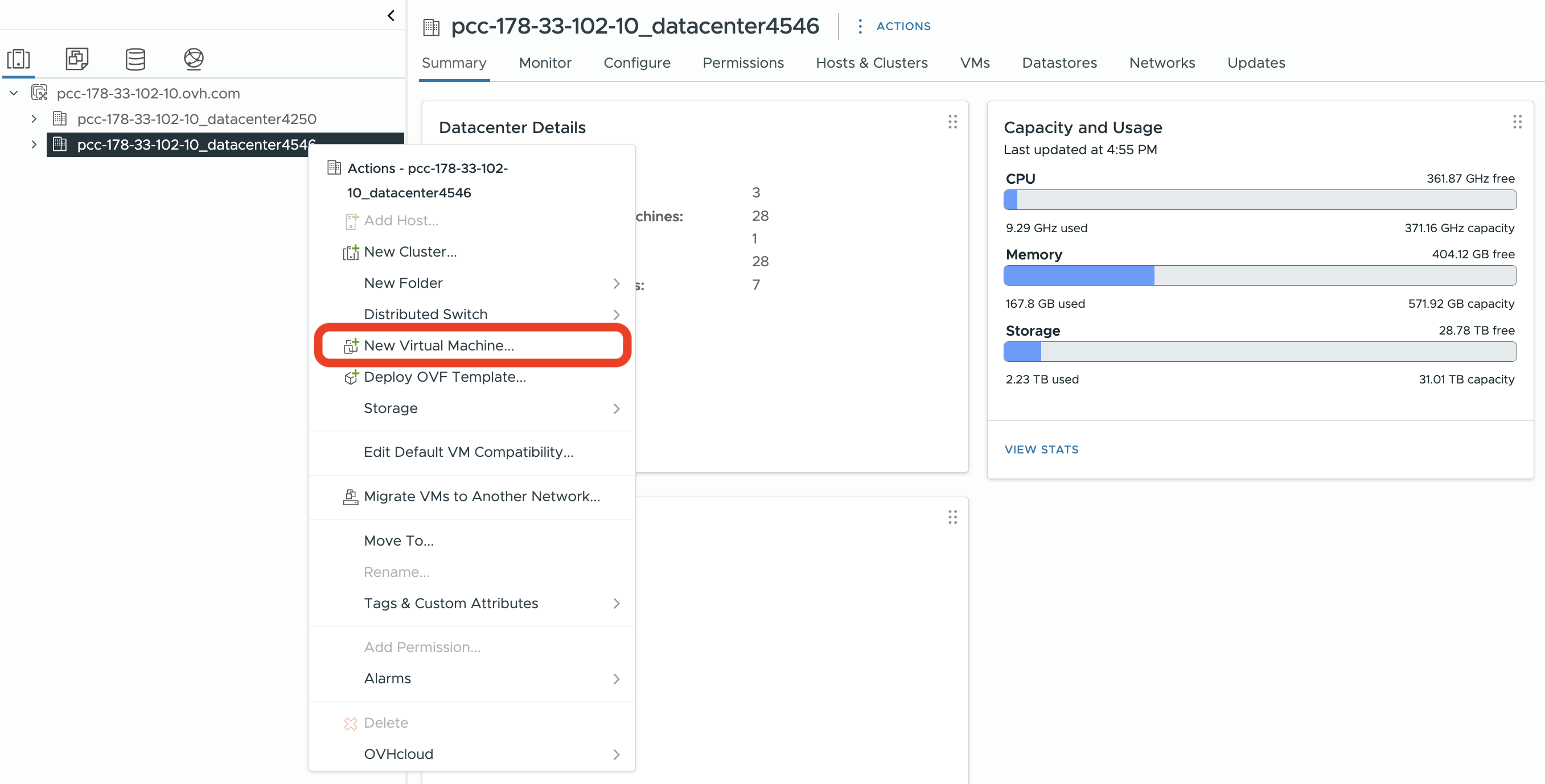
#In the vSphere HTML Client, open Hosts and Clusters (first column on the sidebar), right-click the datacenter that will contain the appliance, and select New Virtual Machine.
Select a creation type
#Select Create a new virtual machine and click Next.
Specify a name and target location
#Enter a name for the virtual machine and select the datacenter as the target location.
Select a compute resource
#Select the destination compute resource for the datacenter. This will typically
be your cluster, for example Cluster1.
Select storage
#Select the datastore that will hold the virtual machine configuration and disk files.
Note
Avoid selecting a host-local datastore such as storageLocal for production
deployments. A host failure will leave the virtual machine unable to restart
if its disk files are on local storage that is not accessible to other hosts
in the cluster.
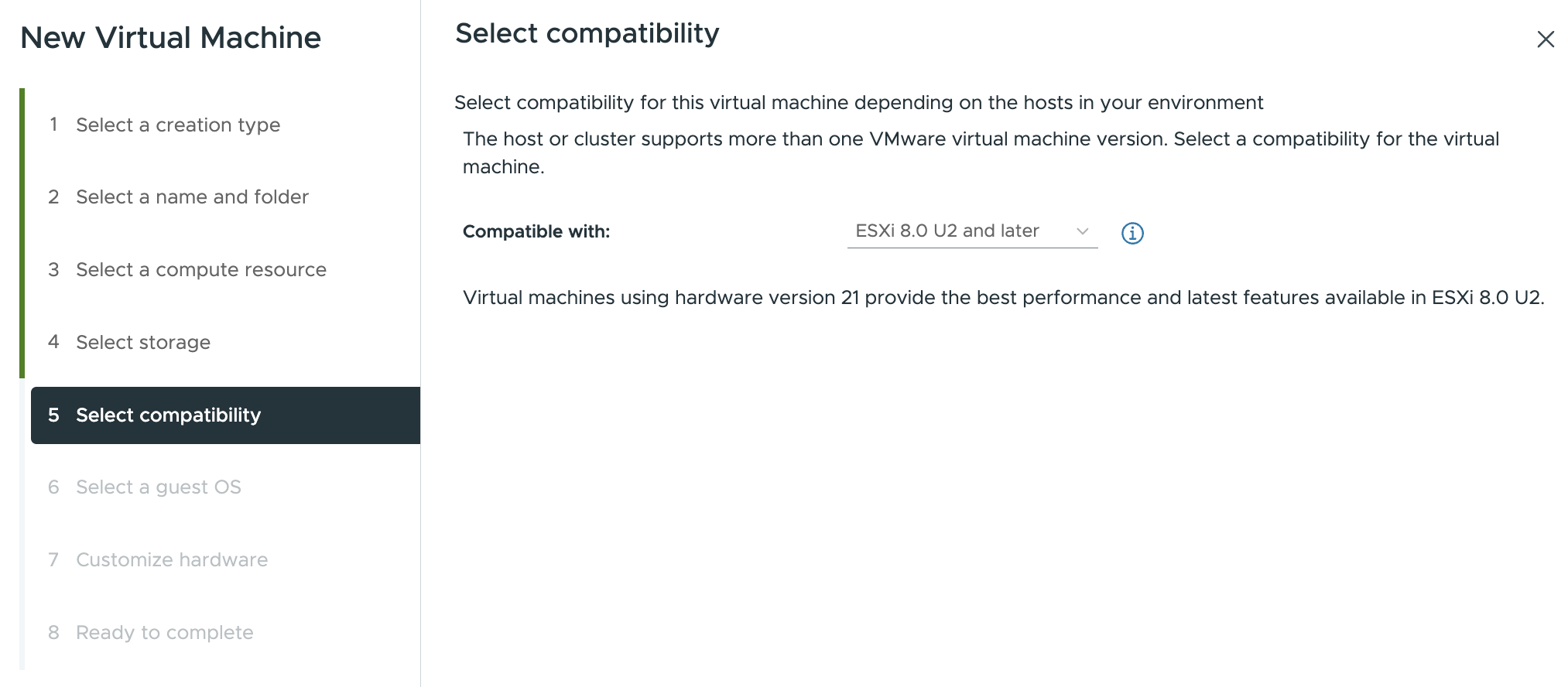
Select compatibility
#The compatibility setting determines the virtual hardware version available to the virtual machine. Leave this at the default, ESXi 8.0 U2 and later (hardware version 21), which provides the best performance and access to the latest features supported by your vCenter environment. Click Next.
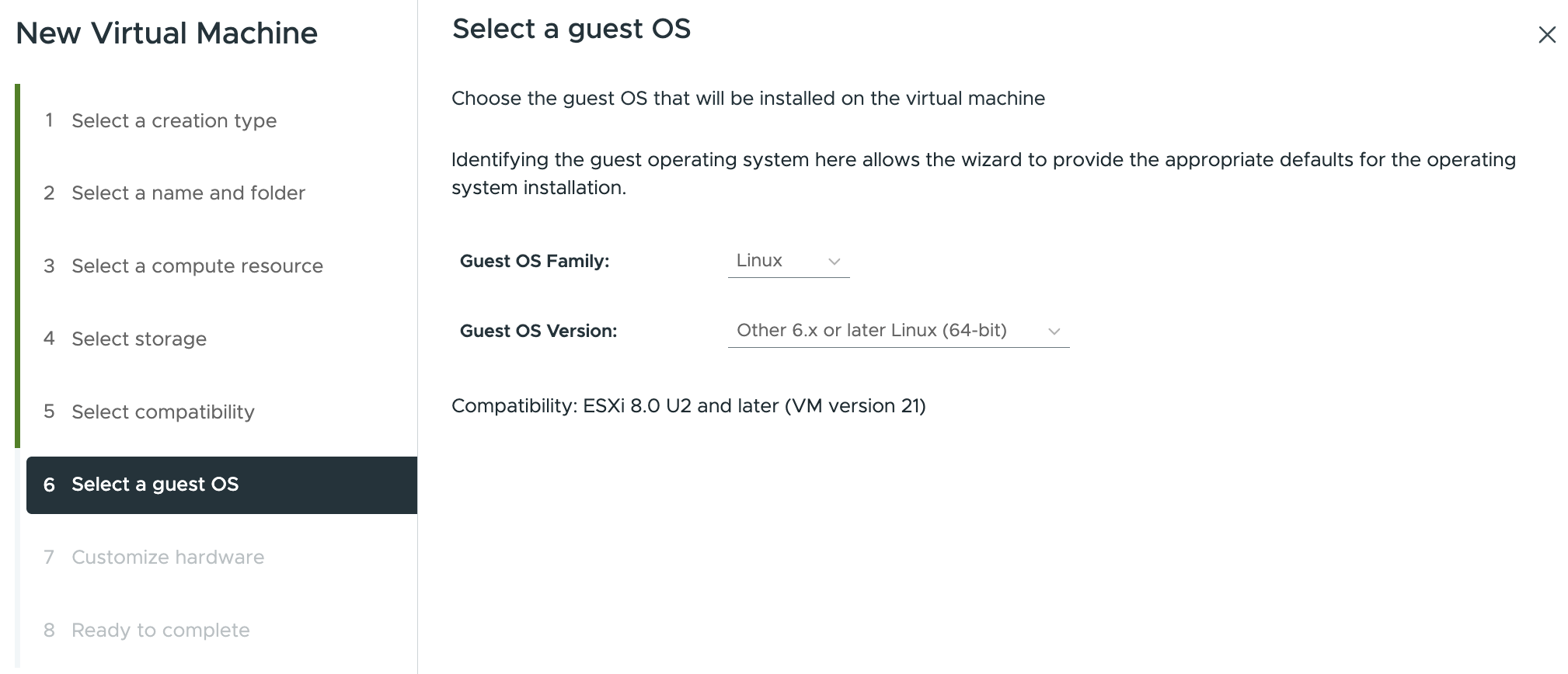
Select a guest OS
#Set the guest OS family to Linux, then select the closest modern 64-bit Linux profile available in your vCenter. On many vSphere 8 environments, this option is Other 6.x or later Linux (64-bit). Click Next.
Customize hardware
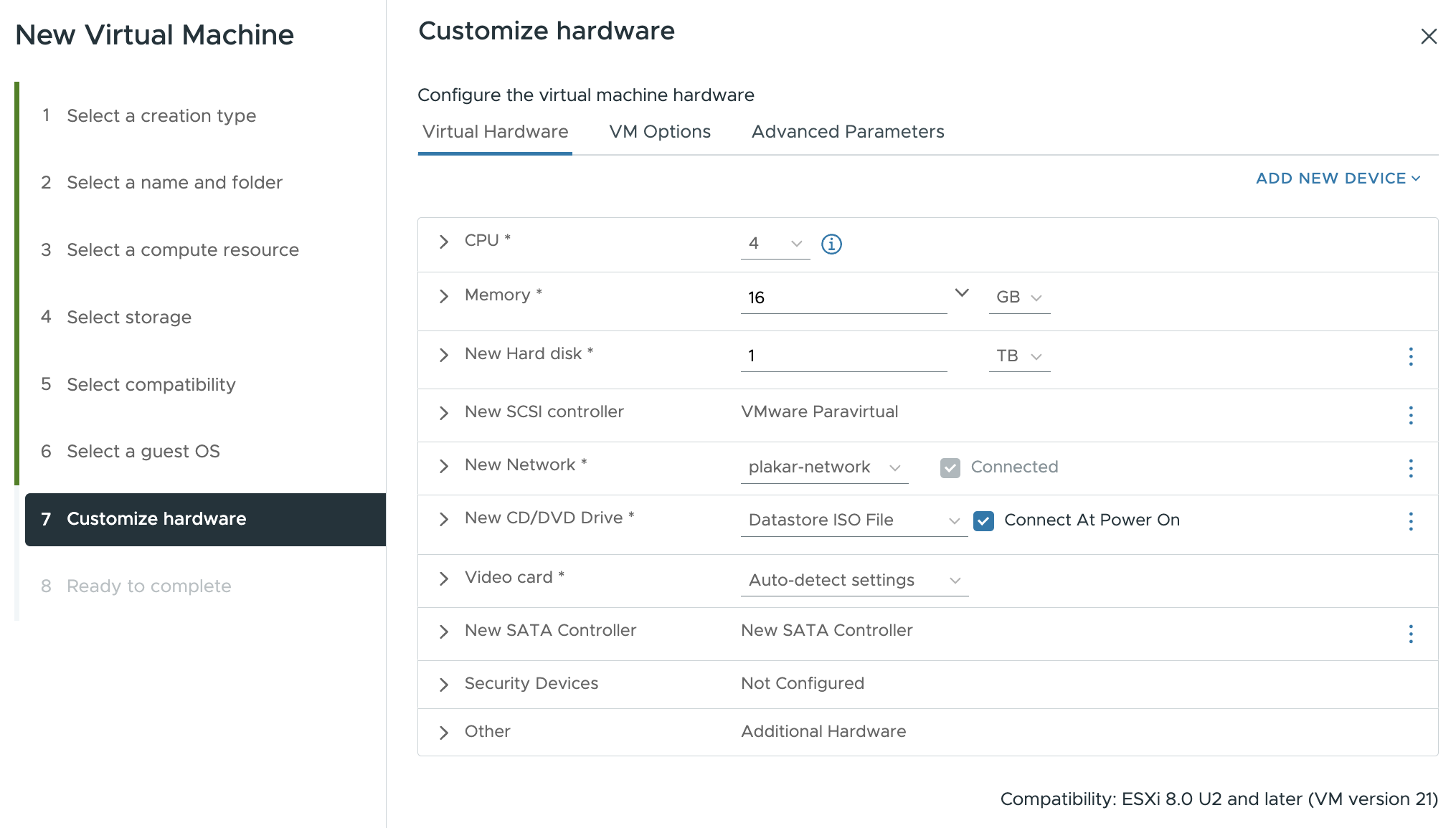
#Configure the virtual machine with the recommended Plakar Control Plane sizing:
- CPU: 4vCPU
- Memory: 16 GB
- Hard disk: 1 TB
For the CD/DVD Drive, select Datastore ISO File, then browse to the Plakar Control Plane ISO that you uploaded earlier. Enable Connect At Power On so that the virtual machine boots from the ISO when it starts.
Attach the network adapter to the network segment you prepared for the
appliance, such as your NSX-backed segment or another destination network in
your vCenter environment. Select Browse then select your network, for
example plakar-network.
Other hardware settings can be left at their default values.
Post-deployment configuration
#After the virtual machine has been created, you need to do some VMware configuration before the first power-on.
On the ISO path, the recommended 1 TB storage is already configured during virtual machine creation. On the OVA path, you need to add the extra 1 TB data disk.
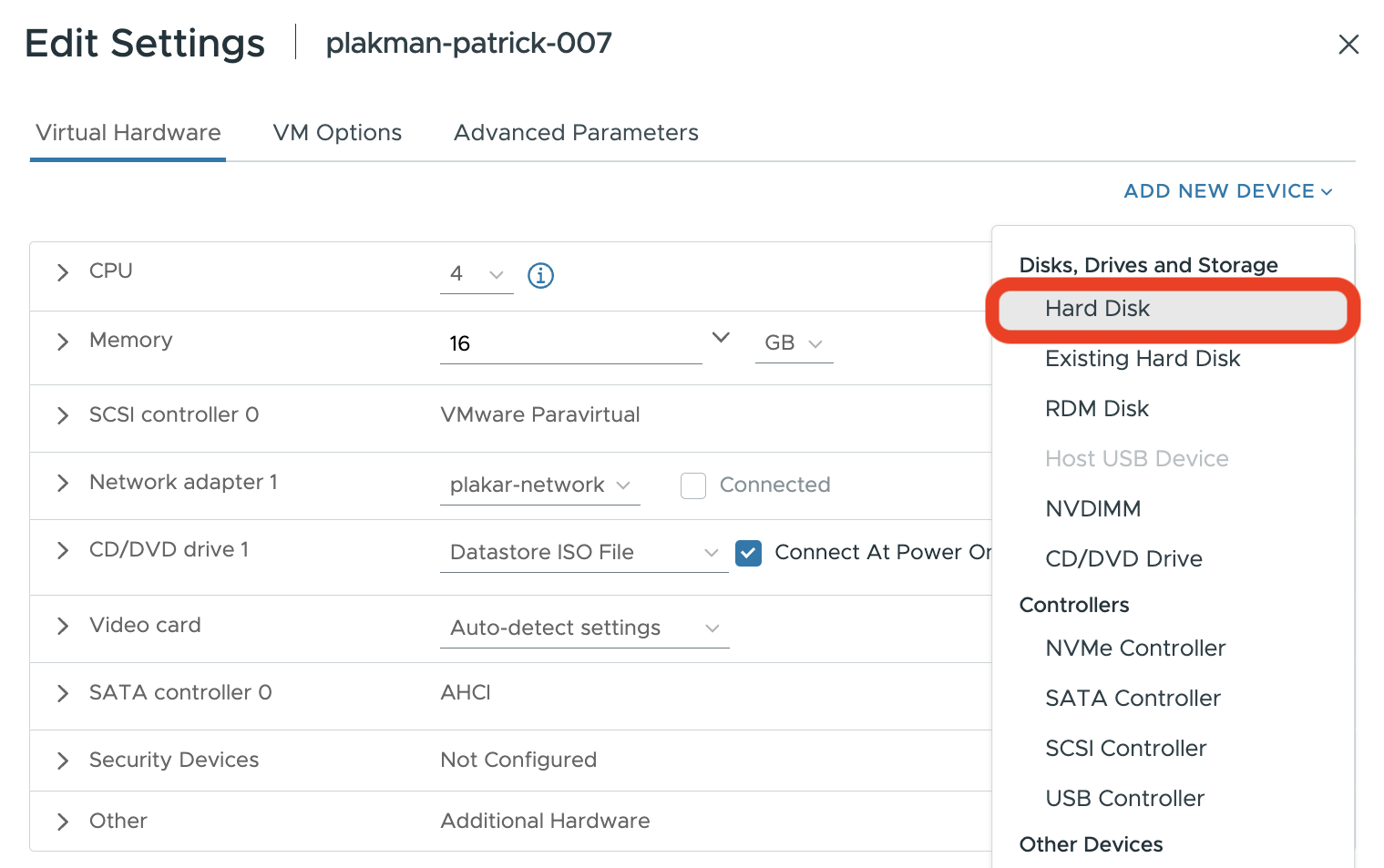
You can edit the VM settings by right clicking on the VM then selecting Edit settings. This opens a dialog with three tabs. We can add the extra 1TB data disk from the Virtual Hardware tab by clicking on Add New Device, select Hard Disk and set it to 1 TB.
Add Advanced Configuration Parameters
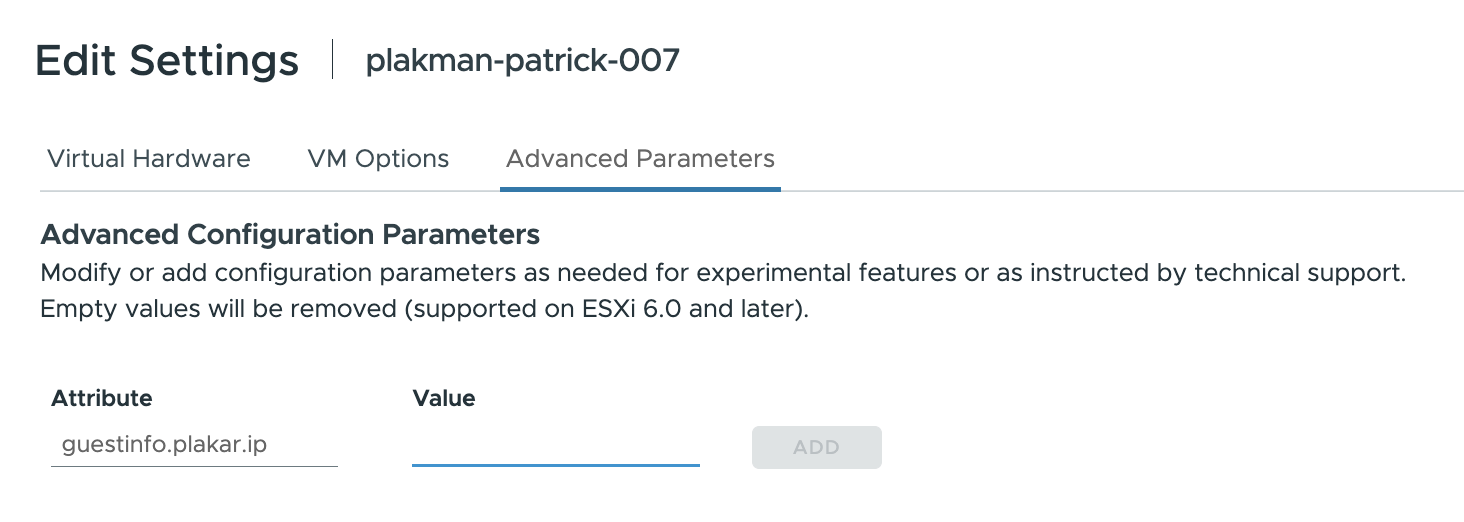
#You can setup the parameters from the Advanced Parameters tab and set the following information. You’ll need to add this setup to both ISO and OVA installation methods.
| Parameter | Description |
|---|---|
guestinfo.plakar.ip |
Appliance IP address with CIDR mask |
guestinfo.plakar.dns |
DNS resolver used by the appliance e.g 1.1.1.1 |
guestinfo.plakar.gateway |
Network gateway for the selected segment |
The gateway can usually be found from the NSX network segment configuration.
Optional: enable SSH access
#SSH access is optional and is not required for a standard installation.
Plakar Control Plane is designed to be managed from the web interface. Only enable SSH if you intentionally need administrative shell access for your environment.
To inject an SSH public key, add the following advanced parameter before booting the VM:
| Parameter | Description |
|---|---|
guestinfo.plakar.ssh_authorized_keys |
Contents of your SSH public key |
After the virtual machine has booted, connect to it with the plakar user:
ssh plakar@<ASSIGNED-IP>Replace <ASSIGNED-IP> with the IP address configured in guestinfo.plakar.ip.
Start the appliance and complete enrollment
#Power on the virtual machine. Once the appliance has booted and is reachable on the network, open it from a browser using its assigned IP address.
http://<ASSIGNED-IP>For production environments, restrict access to trusted IP ranges, private networking, a VPN, or a reverse proxy or load balancer with TLS.
For first-time installations, you will be guided through the enrollment process to:
- Register the instance with Plakar services for licensing and billing
- Create the initial administrator account
See the enrollment documentation for more details.