Scaleway Installation
Plakar Control Plane is distributed for Scaleway as a QCOW2 virtual machine image. The official QCOW2 image for Scaleway can be downloaded from:
Uploading the QCOW2 image to Scaleway Object Storage
Unlike marketplace-based deployments such as AWS AMIs, Scaleway instances cannot boot directly from an uploaded QCOW2 image. The image must first be imported into Scaleway Block Storage as a snapshot, which can then be attached as the boot volume for the instance.
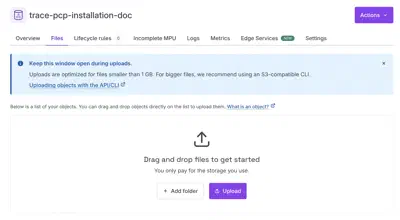
Before importing the image as a snapshot, the QCOW2 file must first be uploaded to Scaleway Object Storage. Create an Object Storage bucket, then upload the QCOW2 image to the bucket.
Creating a Block Storage snapshot
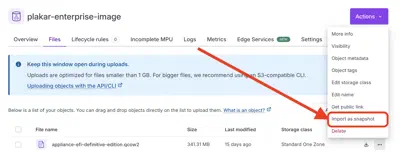
Once the QCOW2 image has been uploaded, open the bucket Files page and select Import as snapshot from the object actions menu.
Scaleway will convert the QCOW2 image into a Block Storage snapshot that can later be attached as the root volume for the instance.
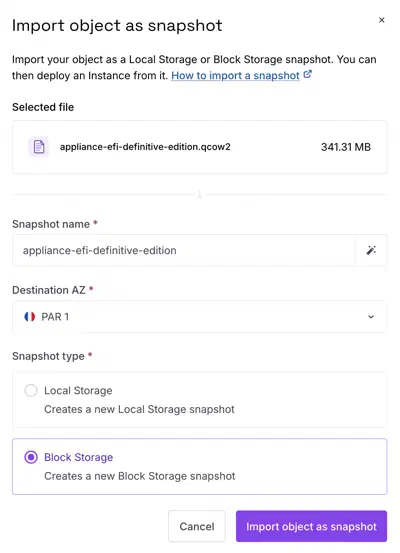
When importing the snapshot:
- Select the Scaleway zone where the snapshot should be created
- Select Block Storage as the snapshot type
Note
Scaleway instances can only attach block storage volumes from the same zone.
The Object Storage bucket, Block Storage volumes, snapshots, and compute instance should also belong to the same Scaleway project.
Creating the Scaleway instance
Create a new Scaleway compute instance using the Block Storage snapshot as the boot source.
The instance must be created in the same Scaleway zone as the snapshot, otherwise the snapshot will not be available for attachment as the root volume.
Plakar Control Plane is recommended to run on a machine with:
- 4 vCPUs
- 16 GB RAM
A configuration such as BASIC3-X4C-16G is suitable for most deployments.
These are recommendations for a production deployment. For evaluation or testing, you can reduce CPU, RAM, and storage.
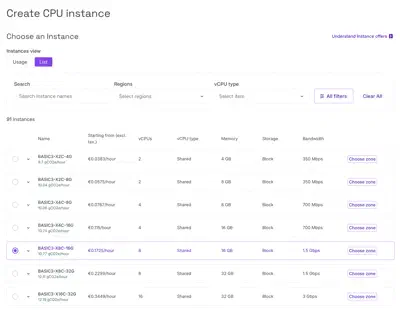
Select the Scaleway zone where the instance should be created, then continue to the instance configuration step.
For the instance boot image:
- Open the My snapshots section
- Select the Block Storage snapshot created from the QCOW2 image
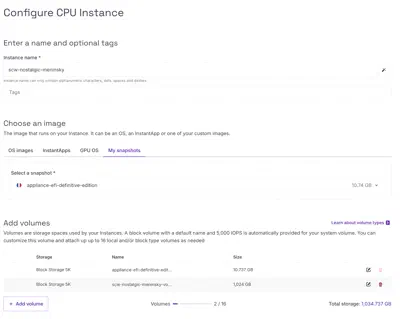
The Block Storage Snapshot volume is used only as the operating system boot disk. Plakar Control Plane requires an additional persistent data volume that stores the database, logs, and all Plakar state.
Attach an additional Block Storage volume with a recommended size of 1024 GB.
Backups themselves are stored wherever you configure using apps.
Configuring the Appliance
Settings the appliance needs at boot are delivered through Scaleway’s cloud-init user data, set before the instance is created. A single cloud-config document can carry a proxy, a registry mirror, a Private Network interface and an SSH key. Include only the keys your environment needs. An instance with a public IP and direct internet access needs none of them.

#cloud-config
proxy:
  http: http://<proxy-ip>:<proxy-port>
  https: http://<proxy-ip>:<proxy-port>
  no_proxy: .corp.example,10.0.0.0/8 # optional

registry:
  mirrors:
    docker.io: <harbor-host>/dockerhub-proxy
    ghcr.io: <harbor-host>/ghcr-proxy
  insecure: false # true: skip TLS verification for the mirror hosts

network:
  ethernets:
    eth1:
      dhcp4: true # Private Network interface, for an instance without a public IP

ssh_authorized_keys:
  - ssh-ed25519 AAAA...
Proxy and registry mirror
Plakar Control Plane requires HTTPS access to api.plakar.io for runtime
configuration, license validation, and plugin downloads, and pulls container
images from docker.io and ghcr.io. When the instance has no direct internet
access, the proxy: key routes this traffic through an HTTP proxy. If the proxy
uses a whitelist instead of allowing all outbound traffic, add *.plakar.io.
Container images can go through the same proxy, which must then allow
*.docker.io, *.docker.com, *.ghcr.io and *.githubusercontent.com. The
registry: key instead pulls them from a Harbor registry mirror. A mirror is
recommended for production deployments because images come from a local cache
rather than the public internet, and the Docker and GitHub domains no longer
need to be allowed on the proxy.
Private Network
An instance can run without a public IP, attached to a Private Network that reaches the internet through a Scaleway Public Gateway. By default, the appliance only requests an address over DHCP on its first interface, which on Scaleway is the public interface. Without a public IP, nothing answers on that interface and the instance does not finish booting.
The network: key enables DHCP on eth1, the Private Network interface. The
instance then receives its address, its default route through the Public Gateway
and its DNS resolver from the Private Network, provided Advertise default
route is enabled on the gateway’s attachment to the network.
Such an instance is reached through a load balancer or the SSH bastion of the Public Gateway. See HTTPS access on a Private Network and SSH bastion access.
SSH access
The appliance accepts SSH connections as the plakar user. Without cloud-init
user data, an instance receives the SSH keys registered in its Scaleway project,
in the SSH keys section of the instance creation flow.

When cloud-init user data is provided, Scaleway no longer adds the project keys,
and the ssh_authorized_keys: key is the only way to authorize one. The key is
optional, and mostly useful to debug a network configuration that does not work.
ssh plakar@<instance-ip-address>Security group
When the instance is created, Scaleway automatically attaches the default
security group. For an instance with a public IP, assign both an IPv4 and an
IPv6 address, then open the Security Group tab of the instance once it is
running. Set the default inbound policy to drop all, then allow inbound TCP
traffic on port 80, and on port 22 if you connect over SSH.
The allowed source can be your public IP address, your organization gateway or
VPN address, or 0.0.0.0/0 for temporary testing access.
Warning
Using 0.0.0.0/0 allows access from any IP address and should only be used
for testing or temporary deployments.
In production environments, adapt networking and access control to your infrastructure, for example by exposing Plakar Control Plane through a load balancer with HTTPS, restricting access to a VPN or private network, or limiting inbound traffic to trusted IP ranges.
Accessing Plakar Control Plane
Once the instance has started, Plakar Control Plane is reached from a browser at
http://<public-ipv4-address> for an instance with a public IP, or through the
load balancer or SSH bastion for an instance on a Private Network. For
first-time installations, you will be guided through the enrollment process to:
- Register the instance with Plakar services for licensing and billing
- Create the initial administrator account
See the enrollment documentation for more details.