Azure Blob Storage
Azure Blob Storage resources represent container-based object storage hosted on Microsoft Azure.
Inventory Management
Currently no managed inventory has the capability of discovering Azure Blob Storage resources. You must configure a self-managed inventory before adding an Azure Blob Storage resource.
Adding Azure Blob Storage as a resource
When using a self-managed inventory, register the resource with Object Storage
as the class and Azblob as the subclass. For the endpoint, use the container
name. See
Getting your credentials from Azure for
where to find the container name, and resources documentation
for more information on how to set up resources on a self-managed inventory.
Backup flow
flowchart TD
  subgraph Azure["Azure Blob Container (source)"]
    Blobs["Blobs"]
  end

  subgraph Plakar["Plakar Control Plane"]
    Source["Azure Blob Source app"]
    Backup["Backup process
Encrypt & deduplicate"]
  end

  Store["Kloset Store"]

  Source -->|"read blobs"| Blobs
  Blobs --> Backup
  Backup --> Store
Restore flow
flowchart TD
  Store["Kloset Store"]

  subgraph Plakar["Plakar Control Plane"]
    Destination["Azure Blob Destination app"]
    Restore["Restore process"]
  end

  subgraph Azure["Azure Blob Container (destination)"]
    Blobs["Blobs"]
  end

  Store --> Restore
  Destination --> Restore
  Restore -->|"write blobs"| Blobs
Shared Configuration
The following settings are available when configuring source, store or destination apps.
- Account Name: The name of the Azure Storage account, for example
mystorageaccount. - Account Key: The access key used to authenticate with the Azure Storage account.
- Connection String: The full Azure Blob Storage connection string, for
example
DefaultEndpointsProtocol=https;AccountName=mystorageaccount;AccountKey=...;EndpointSuffix=core.windows.net. When provided, this takes precedence over Account Name and Account Key. - Endpoint: The Azure Blob service URL, for example
https://mystorageaccount.blob.core.windows.net. Only needed when connecting to a non-standard endpoint such as Azurite for local development, or to resolve the storage account’s service URL when Use Managed Identity is enabled without Account Name. - Managed Identity Client ID: The client ID of the user-assigned managed identity to authenticate with. Only needed when authenticating with a user-assigned managed identity; leave unset to use the system-assigned managed identity.
- No Auth: Disables authentication entirely. Only useful for public blobs or local emulator setups such as Azurite. Should never be enabled in production.
- Use Managed Identity: Authenticates with Azure Active Directory using a managed identity assigned to the environment Plakar Control Plane runs in, instead of an account key or connection string. Supports both system-assigned and user-assigned identities. It requires Account Name or Endpoint to be set so the storage account’s service URL can be resolved, and cannot be combined with Connection String, Account Key or No Auth.
Store configuration
The following extra settings are available when configuring a store app.
- Kloset Passphrase: The passphrase Plakar Control Plane uses to encrypt the store. This passphrase is required to access the store and must be kept safe.
Getting your credentials from Azure
To use Azure Blob Storage, you first need to create a Storage Account and a Resource Group for it. You can read more under Microsoft Storage Accounts documentation.
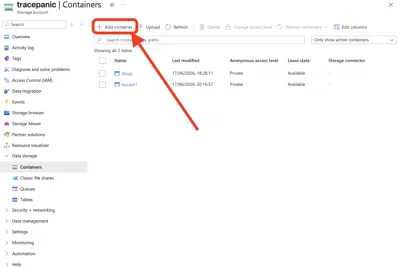
You can create a Storage Container from your Storage Account under Data Storage -> Containers. Use the name of the container as the endpoint when setting up the resource, as described in Adding Azure Blob Storage as a resource.
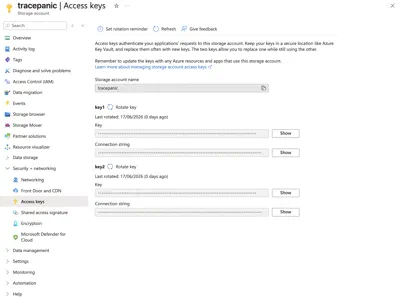
The other remaining credentials can be found under Security + networking -> Access Keys
Permissions
Plakar Control Plane requires a set of Azure RBAC permissions to access your Blob Storage containers. These permissions should be assigned to a security principal which is a user, group, service principal, or managed identity that Plakar Control Plane will use to authenticate. Azure RBAC roles can be assigned at the subscription, resource group, storage account, or container level. See the Microsoft Entra ID documentation for instructions on how to assign roles.
| Permission |
|---|
Microsoft.Storage/storageAccounts/listKeys/action |
Microsoft.Storage/storageAccounts/read |
Microsoft.Storage/storageAccounts/blobServices/containers/read |
Microsoft.Storage/storageAccounts/blobServices/containers/blobs/read |
Microsoft.Storage/storageAccounts/blobServices/containers/blobs/write |
Microsoft.Storage/storageAccounts/blobServices/containers/blobs/delete |
Microsoft.Storage/storageAccounts/blobServices/containers/blobs/tags/read |
Microsoft.Storage/storageAccounts/blobServices/containers/blobs/tags/write |
Microsoft.Storage/storageAccounts/blobServices/containers/blobs/versions/read |
Microsoft.Storage/storageAccounts/blobServices/containers/blobs/versions/delete |
Microsoft.Storage/storageAccounts/blobServices/containers/blobs/versions/tags/read |
Microsoft.Storage/storageAccounts/blobServices/containers/blobs/versions/tags/write |