Managing Users
#Users represent identities that can access Plakar Control Plane. They are used either by people interacting with the web interface or by applications authenticating to the API.
Plakar Control Plane supports two types of users:
- Member – a person who signs in to the web interface and interacts with Plakar Control Plane.
- Application – a non-human identity used by software to authenticate to the Plakar Control Plane API using an access key.
Application users are intended for automation and integrations, such as the Plakar Kubernetes Operator or custom applications that interact with the API.
Creating users
#You can create either a Member or Application user depending on how the identity will access Plakar Control Plane.
Newly created users are not assigned to any organization by default. Before a member user can sign in or an application user can be issued an API key, the user must be granted access to at least one organization.
See Managing Organizations for information about granting users access to organizations.
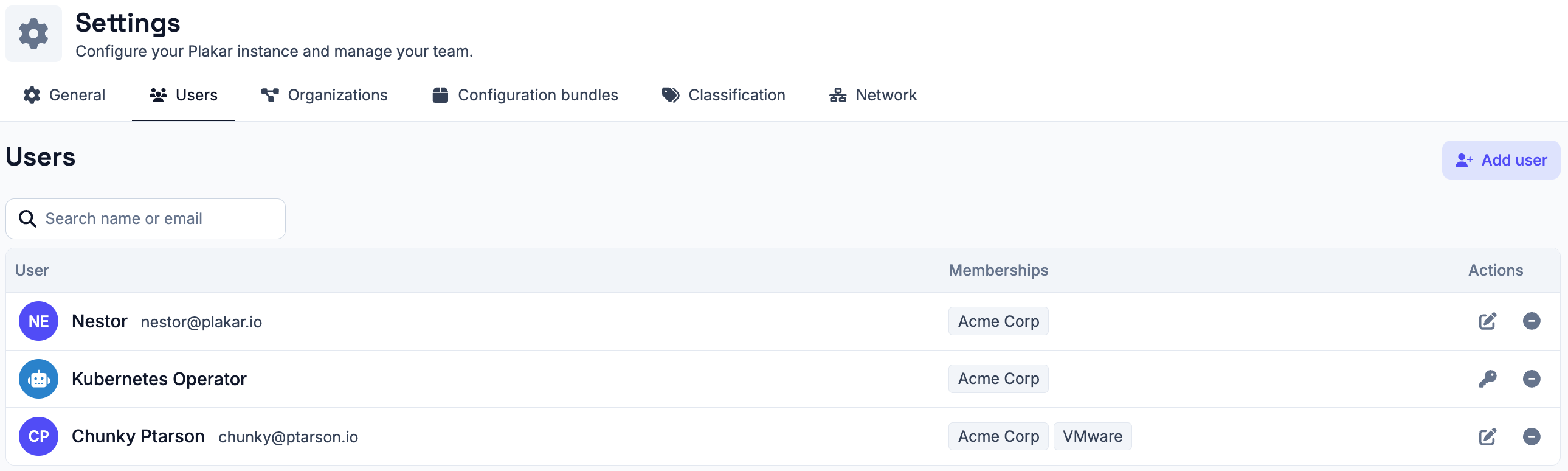
Member users
#Member users authenticate through the Plakar Control Plane web interface. Once they have been granted access to one or more organizations, they can switch between those organizations according to their assigned permissions.
Creating a member user
#To create a member user, select Member as the user type, then provide the user’s name, email address, and an initial password.
Newly created users are not assigned to any organization by default. Before they can sign in to Plakar Control Plane, they must be granted access to at least one organization. See Managing Organizations for more information.
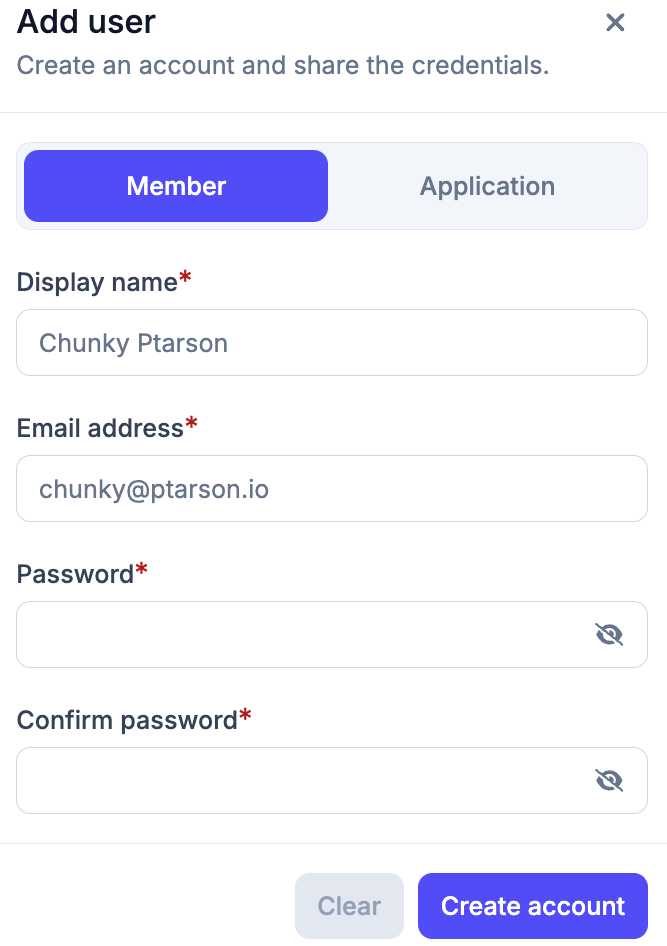
The initial password is used only for the first sign-in. After authenticating for the first time, the user is prompted to choose a new password before accessing Plakar Control Plane.
Application users
#Application users authenticate to the Plakar Control Plane API using API keys instead of interactive credentials. They are intended for automation and integrations, such as the Plakar Kubernetes Operator or custom applications.
Creating an application user
#To create an application user, select Application as the user type, then provide a name for the application.
Newly created application users are not assigned to any organization by default. Before they can authenticate to the Plakar Control Plane API, they must be granted access to at least one organization. See Managing Organizations for more information.
Once the application has been granted access to an organization, generate an API key to authenticate API requests.
API keys
#Application users authenticate to the Plakar Control Plane API using API keys. Each application user can have multiple API keys, allowing different services or deployments to use separate credentials.
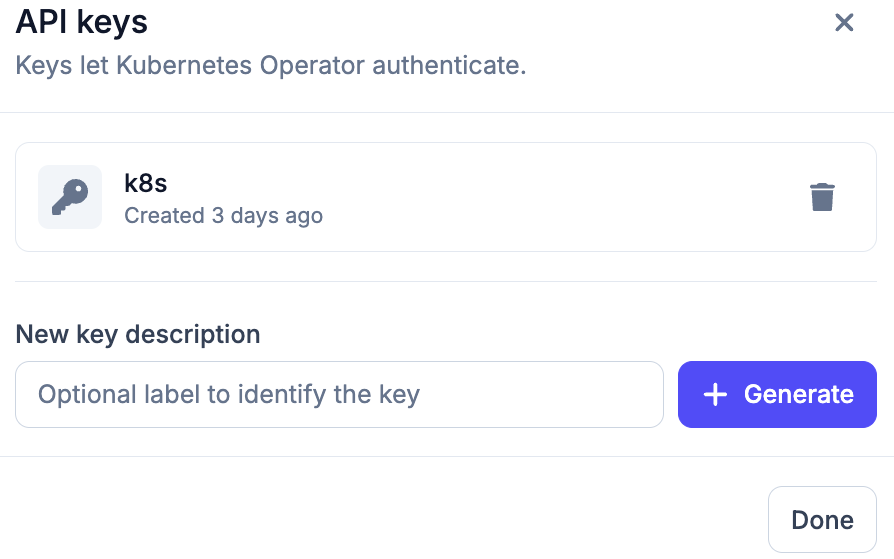
To create an API key, open the application’s API key dialog, optionally provide a description, then generate the key. The generated key is used to authenticate API requests on behalf of the application user.
The API key management dialog also lists all existing API keys for the application, allowing you to review and delete keys that are no longer needed.
API keys
API keys are displayed only once when they are created. After you leave this page, the key cannot be viewed again. Store it securely in a password manager, secrets manager, or another secure location before continuing.
User Roles
#A user’s permissions are determined by the role assigned to them within each organization. The same user may have different roles in different organizations. For example, a user may be an Administrator in the AWS organization while being assigned the Backup Operator role in the VMware organization.
Currently, Plakar Control Plane provides two roles:
- Administrator – full administrative access to the organization.
- Backup Operator – access limited to backup operations.
Roles
Plakar Control Plane currently provides two built-in roles. Future releases will introduce several additional roles to better support different operational responsibilities and access control requirements.