AWS Inventory
The AWS inventory allows Plakar Control Plane to connect to your AWS account and discover and classify your resources. Once connected, Plakar Control Plane discovers all resources in your AWS account and makes them available for management directly within Plakar Control Plane.
Discovery flow
flowchart TD
  subgraph Plakar["Plakar Control Plane"]
    Inventory["AWS Inventory
Discover & Classify"]
  end

  subgraph Creds["Authentication"]
    direction LR
    IAM["IAM Role
(PCP deployed on AWS)"]
    Key["Access Key
(PCP deployed outside AWS)"]
  end

  subgraph AWS["AWS Account"]
    Resources["Supported Resources"]
  end

  Inventory -->|"on AWS"| IAM
  Inventory -->|"outside AWS"| Key
  IAM & Key -->|"AWS APIs"| Resources
  Resources -->|"sync to inventory"| Inventory
Supported Resources
| Resource | Source | Store | Destination |
|---|---|---|---|
| S3 Bucket | Yes | Yes | Yes |
| Database (RDS) | Yes | No | Yes |
Authentication
There are two ways to authenticate your AWS account, depending on where Plakar Control Plane is deployed:
- On AWS infrastructure: For Plakar Control Plane instances deployed on AWS using the AWS Marketplace AMI, use the IAM credential type. Plakar Control Plane will use the IAM role and permissions attached to the EC2 instance to discover and manage your resources.
- Outside AWS infrastructure: If Plakar Control Plane is deployed on another cloud provider (such as Scaleway or OVHcloud) or on-premises, use the Access Key credential type. You will need to provide an AWS access key and secret key with sufficient permissions.
When using the IAM credential type, an IAM role with the required permissions must first be attached to the Plakar Control Plane EC2 instance.
Read the documentation on Managing IAM Roles, Users, and Access Keys on AWS for more information on how to set up IAM role with the necessary permissions and attach it to the instance.
Once attached, selecting the IAM credential type during AWS inventory setup will use the permissions from the IAM role attached to the instance.
Obtaining Access Keys
The Access Key credential type authenticates as an AWS IAM user with the required permissions. An access key generated for that user consists of an access key ID and a secret access key, and both are provided to the inventory.
SECRET KEYS
The secret access key is only displayed once by AWS. Make sure to store it securely or use a secret provider.
Required Permissions
Plakar Control Plane requires AWS permissions to discover and classify supported resources in your AWS account.
The same permissions are required for both:
- The Access Key credential type
- IAM roles attached to the EC2 instance when using the IAM credential type
Use the following IAM policy:
{
  "Version": "2012-10-17",
  "Statement": [
    {
      "Effect": "Allow",
      "Action": [
        "ec2:DescribeInstances",
        "resource-explorer-2:Search",
        "resource-explorer-2:List*",
        "resource-explorer-2:Get*",
        "s3:ListAllMyBuckets",
        "rds:DescribeDBInstances",
        "rds:DescribeDBClusters"
      ],
      "Resource": "*"
    }
  ]
}
Permission Details
| Permission | Description |
|---|---|
ec2:DescribeInstances |
Discovers EC2 instances and related metadata |
resource-explorer-2:Search |
Searches AWS resources across the account |
resource-explorer-2:List* |
Lists Resource Explorer resources and views |
resource-explorer-2:Get* |
Retrieves Resource Explorer metadata |
s3:ListAllMyBuckets |
Discovers S3 buckets in the account |
rds:DescribeDBInstances |
Discovers RDS database instances |
rds:DescribeDBClusters |
Discovers RDS database clusters |
Creating an AWS Inventory
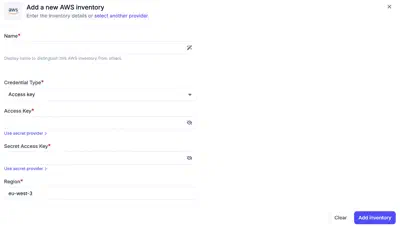
An AWS inventory needs a name, a credential type and a region. The credential type is IAM when Plakar Control Plane runs on AWS and Access Key otherwise, as described in Authentication. With Access Key, the access key and secret key are entered directly or loaded from a secret provider.
An inventory discovers its resources when it is synchronized, so a new inventory is empty until its first synchronization. Synchronizing again refreshes the inventory, for example after resources are added to the AWS account.