VMware Inventory
The VMware inventory lets Plakar Control Plane connect to a VMware environment, such as a vCenter Server or a vSphere-based cloud platform like OVHcloud, and discover supported resources. Once connected, the discovered resources become available for management directly from Plakar Control Plane.
Supported Resources
| Resource | Source | Store | Destination |
|---|---|---|---|
| Compute Instances | Yes | No | Yes |
Authentication
VMware inventories authenticate using a username and password for an account that has access to the VMware environment.
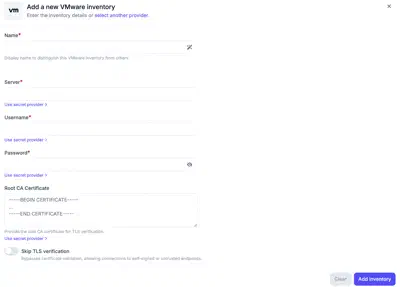
When creating a VMware inventory, provide the following information:
- Name: a name for the inventory.
- Server: the VMware server address, for example
xxx.ovh.comfor OVHcloud Hosted Private Cloud environments. - Username: a user account with permission to access the VMware server.
- Password
- Root CA Certificate (optional): the root CA certificate used to verify the server’s TLS certificate.
- Skip TLS verification (optional): disables certificate validation, allowing connections to servers using self-signed or otherwise untrusted certificates.
Network Access
Before Plakar Control Plane can connect to a VMware environment, the public IP address of the Plakar Control Plane instance must be allowed by the VMware platform.
The exact procedure depends on your provider. For example, in an OVHcloud Hosted Private Cloud environment, add the Plakar Control Plane IP address to the vCenter allow list by navigating to:
Hosted Private Cloud → Managed VMware vSphere → Your vSphere Instance → Security
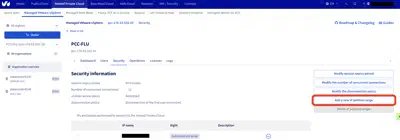
If you’re using another VMware provider or a self-managed vCenter deployment, consult your platform’s documentation for the equivalent allow-list or firewall configuration.
Without allowing the Plakar Control Plane IP address, connection attempts to the VMware server will fail even if the authentication credentials are correct.
Creating a VMware Inventory
When creating a new VMware inventory, provide the inventory name, server, username, password, and optionally a root CA certificate or enable Skip TLS verification.
After creating the inventory, trigger a synchronization to discover and load compute instances from the configured VMware environment. You can run synchronization again at any time to refresh the inventory, for example after creating new instances.