OVHcloud Inventory
The OVHcloud inventory allows Plakar Control Plane to connect to your OVHcloud account and discover resources across all of its projects. Once connected, Plakar Control Plane discovers supported OVHcloud resources and makes them available for management directly within Plakar Control Plane.
Discovery flow
flowchart TD
  subgraph Plakar["Plakar Control Plane"]
    Inventory["OVHcloud Inventory
Discover & classify"]
  end

  subgraph Creds["Authentication"]
    Keys["Application Key
Application Secret
Consumer Key"]
  end

  subgraph OVHcloud["OVHcloud Account"]
    Resources["Supported Resources"]
  end

  Inventory -->|"authenticate"| Keys
  Keys -->|"OVHcloud APIs"| Resources
  Resources -->|"sync to inventory"| Inventory
Supported Resources
| Resource | Source | Store | Destination |
|---|---|---|---|
| Object Storage (S3) | Yes | Yes | Yes |
| Compute Instance | Yes | No | Yes |
| Block Storage Volume | Yes | No | Yes |
| Managed Database | Yes | No | Yes |
Authentication
OVHcloud inventories authenticate using an application key, application secret, and consumer key. These credentials are generated through the OVHcloud token creation portal and tied to a specific set of API permissions.
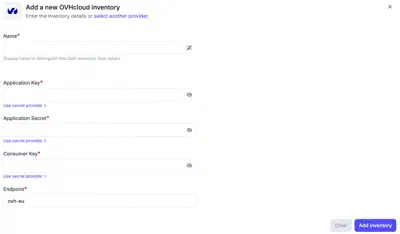
An OVHcloud inventory needs a name and the three credentials of an OVHcloud API application: the Application key (AK), the Application secret (AS) and the Consumer key (CK). See Managing API Applications and Credentials for how to generate them.
Required Permissions
Plakar Control Plane requires read access to OVHcloud APIs so it can discover and classify resources during inventory synchronization. All required rights use the GET method only.
When generating credentials through the OVHcloud token creation portal, add the following paths with the GET method:
| Path | Description |
|---|---|
/me |
Reads the account the credentials belong to |
/cloud/project* |
Lists all projects in the account and their resources |
The inventory discovers resources in every project of the account. Restricting the credentials to a single project is not supported. Synchronization still tries to list resources in all projects.
Creating an OVHcloud Inventory
When creating a new OVHcloud inventory, provide the inventory name, application key, application secret, and consumer key. Credentials can be entered directly or loaded from a secret provider.
After creating the inventory, trigger a synchronization to discover and load resources from your OVHcloud account. You can run synchronization again at any time to refresh the inventory, for example after creating new instances or object storage buckets in OVHcloud.