Managing Users and Application Credentials
Plakar Control Plane authenticates against Keystone, the OpenStack identity service, whenever it reaches an OpenStack cloud. The OpenStack inventory uses credentials to discover the resources of a project, and the OpenStack Compute and OpenStack Block Storage apps use them to back up and restore servers and volumes.
In OpenStack, a user has no access by default. Access comes from role assignments, each of which grants one role to one user on one project. A user can hold roles on several projects, and a different role on each.
An application credential is created by a user for a single project, and carries some or all of the roles that user holds on that project. It never reaches another project, even when its user holds roles there. External services such as Plakar Control Plane authenticate with the application credential rather than with the user’s password, and it can be revoked without affecting the user.
Keystone creates a set of
default roles
when it is deployed. Since the Rocky release they are admin, member and
reader, and the 2023.2 (Bobcat) release adds manager and service. A cloud
deployed on Bobcat or later has all five, while an older cloud, or one upgraded
from an older release, may only have the first three. Providers can also define
roles of their own.
This guide walks through creating a dedicated user for Plakar Control Plane, then creating application credentials under that user for each use.
Creating a user
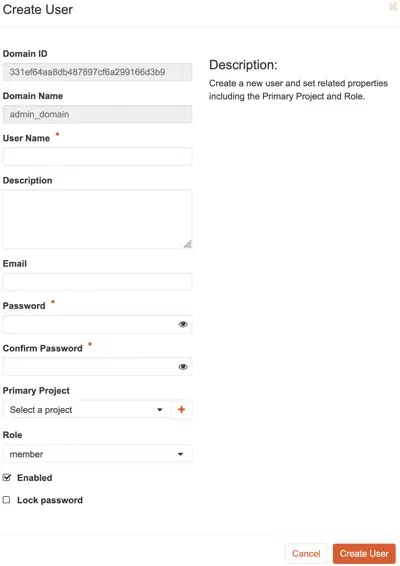
A dedicated user keeps the access given to Plakar Control Plane separate from the accounts of the people managing the cloud. Users are created by an administrator under Identity -> Users, with Create User.
When creating the user, provide a User Name and a Password. The Primary Project and Role fields grant the selected role to the user on that project, which also becomes the project the user lands on when signing in. Without a primary project, the user is created with no role on any project, and roles have to be granted afterwards.
Plakar Control Plane needs the reader role for discovery and the member role
for backups and restores. An application credential can only carry roles its
user already holds, so the user must hold every role its credentials will need.
Granting it the manager role covers both, because in Keystone manager
implies member, which implies reader. On a cloud without the manager role,
grant member, which also implies reader.
A user is not limited to its primary project. To let one user back up several projects, grant it a role on each of them, from the members of each project or the Role assignments of the user. To keep projects separated instead, for example a production project and a staging project, create one user per project and grant each one a role on its own project only.
Creating application credentials
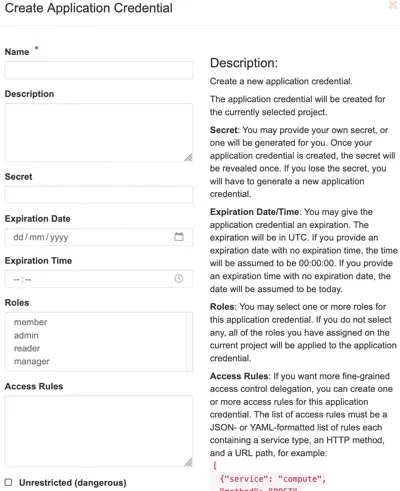
Application credentials belong to the user that creates them, so sign in as the user created in the previous step. Credentials are created under Identity -> Application Credentials, with Create Application Credential.
A credential is bound to the project selected in the project menu at the top of the dashboard when it is created. Select the project to back up before creating the credential. A user who holds roles on several projects needs one application credential per project, and each one is used by its own inventory.
Because one user can hold several application credentials, each use in Plakar Control Plane can have its own, with only the roles it needs:
| Use | Roles |
|---|---|
| OpenStack inventory | reader |
| Compute and Block Storage backups and restores | reader, member |
When creating the credential, provide a Name, then select its Roles. If no role is selected, the credential carries every role the user holds on the project. Leave Unrestricted unchecked. An unrestricted credential can create further application credentials, which Plakar Control Plane does not need.
The Secret can be entered, or left empty for OpenStack to generate one.
Warning
Check the Expiration Date carefully. Without one, the credential does not expire. When it does expire, Plakar Control Plane can no longer discover resources, and scheduled backups using it fail. Create a new application credential and update it in Plakar Control Plane before the current one expires.
After creating the credential, OpenStack shows its ID and secret. These are the values entered as the application credential ID and secret in Plakar Control Plane.
Warning
The secret is only shown once. Store it somewhere safe before leaving the page. A lost secret cannot be recovered, and a new application credential has to be created.