Signing In
Signing in to Plakar Control Plane requires an account and a password. The account identifies who you are and which organization you are signing in to.
Users are identified by their email address, and that identity is shared across the entire deployment. Because the same user can be a member of several organizations, the account you enter also selects the organization context you want to login to.
Signing in to the root organization
To sign in to the root organization, enter your email address on its own:
chunky@ptarson.ioSigning in to a specific organization
To sign in to any other organization, prefix your email address with the organization’s short identifier, separated by a slash:
7d450d1e/chunky@ptarson.ioOrganizations are identified internally by a UUID, but signing in uses the short identifier, not the full UUID. An organization’s short identifier is shown under Settings -> Organizations as well as when a member is added to an organization.
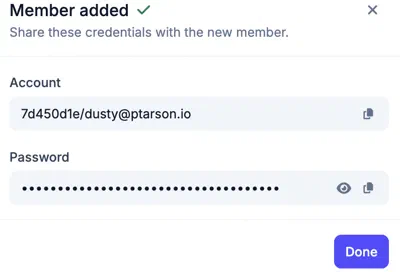
The password is the same in both cases. The prefix selects the organization, not a different account.
Switching organizations
The organization is selected at sign-in and applies for the rest of the session. To work in a different organization, sign out and sign in again using that organization’s short identifier.
Access requirements
You can only sign in to an organization you are a member of. A user who is not a member of any organization cannot sign in until they are added to one. See Managing Users for information about organization membership.
The first time a user signs in with a generated password, they are required to set a new password before they can continue.
If two-factor authentication is enabled on the account, a verification code is requested after the password. See Two-factor authentication for details.
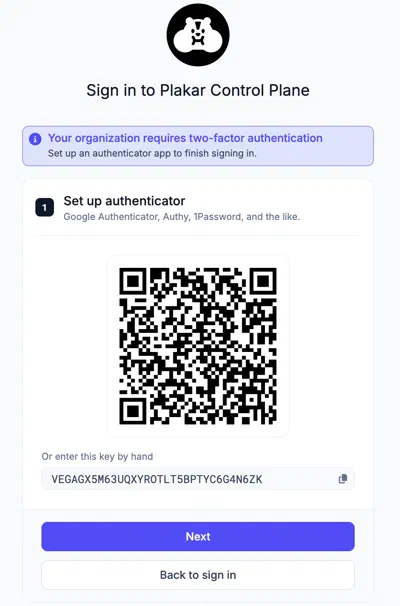
If the organization requires two-factor authentication for all of its members, members without an enrolled second factor must set one up the next time they sign in. They must complete enrollment before they can access Plakar Control Plane. If a password change is also required, such as during a user’s first sign-in, the second-factor enrollment is completed before the password change.