OVHcloud Secret Manager
OVHcloud Secret Manager can be used as a secret provider in Plakar Control
Plane. Select ovh as the integration type when creating a new secret provider.
Plakar Control Plane connects to OVHcloud using an access certificate and its matching private key. These credentials are created for an OKMS domain and used for mutual TLS authentication.
flowchart TB
  subgraph Plakar["Plakar Control Plane"]
  App["Configuration field"]
end

Cert["Access Certificate
+ Private Key"]
OKMS["OKMS Domain"]
Secret["OVHcloud Secret Manager"]

App -->|"requests secret"| Cert
Cert -->|"authenticate"| OKMS
OKMS --> Secret
Secret -->|"secret value"| App
When adding the secret provider, provide a name and the following values:
- Access Certificate: the OVHcloud access certificate in PEM format.
- Access Certificate Key: the private key matching the access certificate in PEM format.
- OKMS ID: the identifier of the OKMS domain, a UUID.
- Region: the region where the OKMS domain and secrets are hosted, for
example
eu-west-gra.
How OKMS and Secret Manager Work Together
OVHcloud Key Management Service and Secret Manager are separate products.
Key Management Service is used to manage encryption keys. Secret Manager is used to store secrets such as passwords, API keys, and other credentials.
Both products use the same underlying OKMS domain. The OKMS domain provides the identity and access configuration used to access these services.
Setting Up the OKMS Domain
In the OVHcloud Control Panel, open Identity, Security & Operations > Security > Key Management Service. From there, you can use an existing OKMS domain or create a new one.
The OKMS ID required by Plakar Control Plane is shown in the list of OKMS domains.

Generating an Access Certificate
Open the OKMS domain you want to use, then go to Access Certificates tab. From there you can create a new access certificate and provide a name for the certificate, validity and a generation method. You can let OVHcloud generate the private key or provide your own private key when creating the certificate.
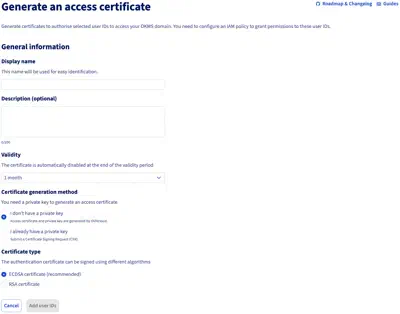
Next, select the users, user groups, or service accounts that the certificate should be associated with, then generate the certificate.
Private Key
If OVHcloud generates the private key, it is displayed only once. Download and store it securely because it cannot be retrieved again later.
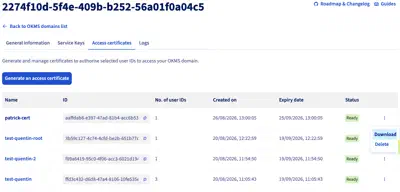
Once the certificate has been created, download its public certificate from the options menu. The two files are used when configuring the secret provider in Plakar Control Plane:
- the public certificate is the Access Certificate,
- the private key is the Access Certificate Key.
Creating Secrets
Secrets are created and managed separately in Identity, Security & Operations > Security > Secret Manager.
When creating a new secret, select the region where the secret will be stored. This must match the Region configured for the secret provider in Plakar Control Plane.
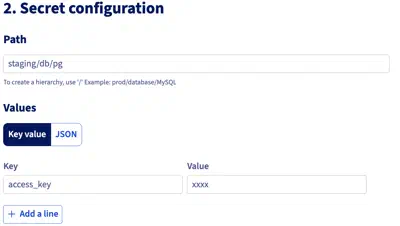
Next, choose a path for the secret. The path is used to organize secrets and can follow any structure that fits your environment. For example:
staging/db/pgFinally, add the key-value pairs you want to store in the secret. For example:
access_key: my-secret-valueCreate the secret when you are finished.
Secret Path Format
Plakar Control Plane uses the following format to reference a value stored in OVHcloud Secret Manager:
{path}#{key}For example, if a secret has the path staging/db/pg and contains a value
access_key. The reference used in Plakar Control Plane would be:
staging/db/pg#access_keyUsing Secrets in Plakar Control Plane
Once OVHcloud Secrets Manager is configured as a secret provider, you can use it in any form field that requires a credential. Switch the field from direct value to secret provider, select your instance from the dropdown, and enter the path to the secret you want to use.
